

1) Create a new document, pick any size you want. I used 300 x 100 for this tutorial. 2) Make a new layer. Now use the Polygonal Lasso Tool and make a shape like below:
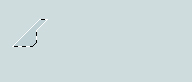
Fill it in with any color, i used #C6D6D9.
3) Make another layer and make a rectangle selection and fill it in with any color, I used #C6D6D9:
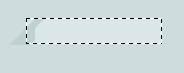
4) Make another layer and make a tech design shape like we did in step 2:

5) Now we got the basic steps done, just got to spice things up. Do this by right clicking the first layer we created and adding these blending options to it:
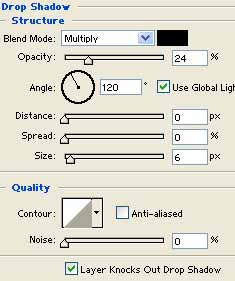
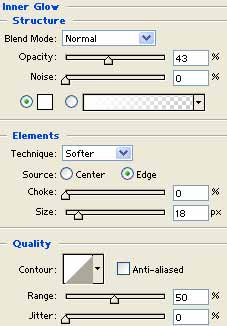
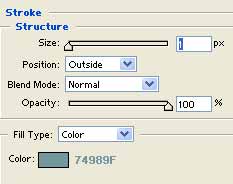
Apply these settings to all the layers, to make it easier on yourself
right click the layer you just applied the settings to and click Copy Layer Style and paste the layer styles onto the other 2 layers:
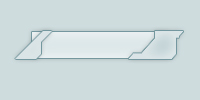
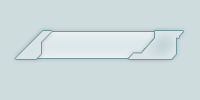
6) Now use the eraser tool to remove any of the rectangle thats hanging over as seen above:
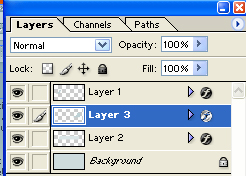
Just to make sure we are on track here is a shot of my layer window:
7)
Now select your font tool. Use a nice small font with bold applied to
it. We want to add chevrons to get a more tech feel. For those who dont
know what I am talking about
>>>>>>>>>>>>>>>>>>>>>>>>>>>>
chevrons, i call them that if its not the right name ;)
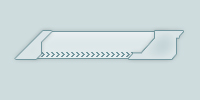
Make sure this font layer is above the rectangle layer and below the left and right layer.
8) Apply these blending options to the font layer:
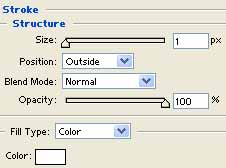
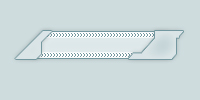
I decided to bring the font size down from 8 which I used above in step
7 to size 6. This makes it smaller and fits in better with the button.
Once done this layer duplicate it and put the chevrons on the top of
the button aswell:
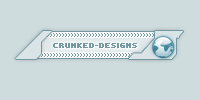
9) Add your font and other little things to spice it up and you should get something as high tech as this:
Thanks for reading the tutorial.
