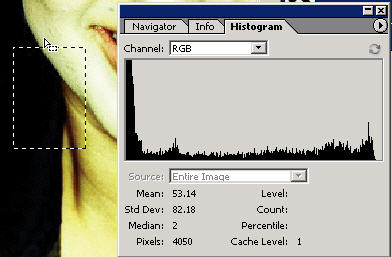
Another palette that you should be aware of is the Histogram palette.
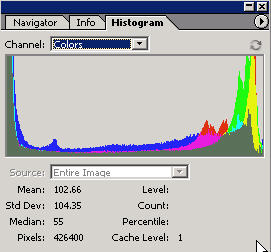
This palette shows a real-time preview of all kinds of image information and features the Levels readout from which you can choose the different color channels.
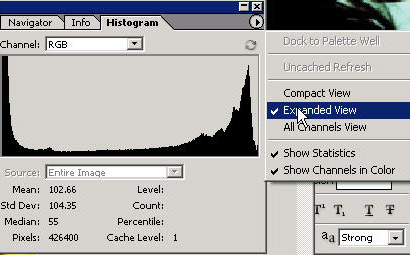
You can change how the display is viewed as shown. You can choose different channels of information to view.
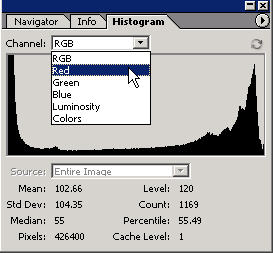
You can also choose entire image or layer. You can
view by default the entire image or when you make a selection view
the information of that selection in the histogram.
Here you can see the different color channels light information
displayed in their own color (wow).
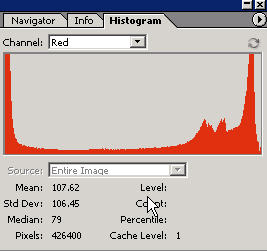
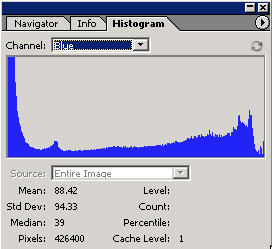
You can choose All channels view to view all of them on top of each other to look at different variations in each channel.
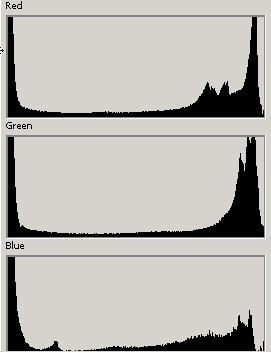
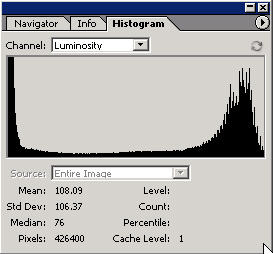
You can also view Colors and see all of the information in one window.
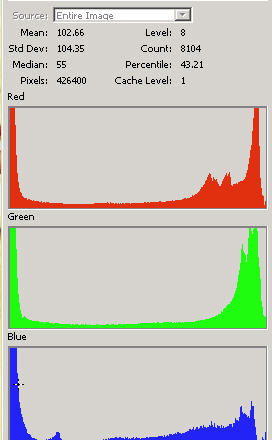
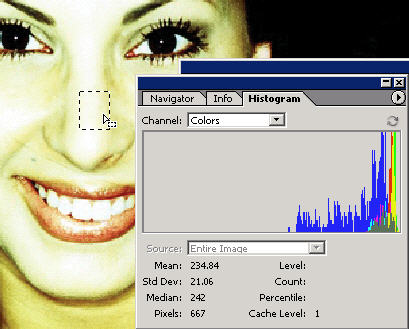
Here you can see the color information for a small selected area. Note that all the color channels are towards the right which means that they are lighter or of higher luminance (ala levels dialog box).
Select a different portion and you'll see a readout that covers a more dynamic range..the blacks are very black and the lights are light and you have some in between tonal range in each of the color channels.
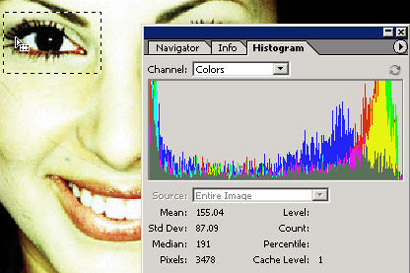
Here in the histogram you can see the dark portion of the selection is represented at the very left end of the histogram. This is maybe getting a little advanced for basic Photoshop but it's good to know. If you want to master the universe then get my Basic Photoshop training DVD set here.