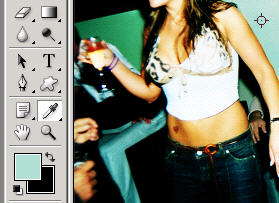
Press I for the eyedropper tool. This tool is used to select colors from anywhere in the workspace (open documents).
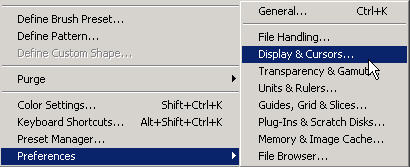
In the Edit: Preferences: Displays and cursors,
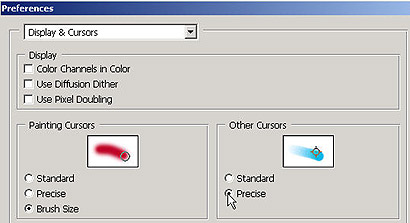
You can change the settings to use either Precise or Standard. Standard is the eyedropper or turkey baster.
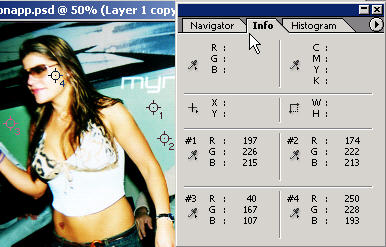
Note that when you drag the eyedropper anywhere and when you click on a point the color image data changes and then is locked in on the Info palette.
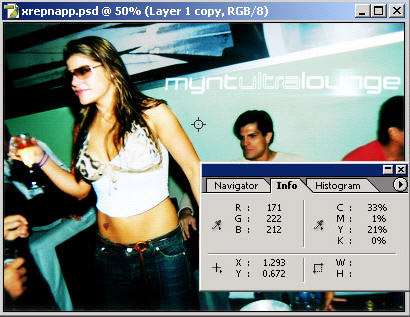
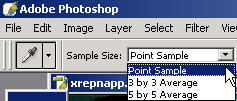
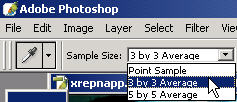
You can right click and choose your sample size or from the options bar at the top (remember it changes with each tool). A point sample collects the data at the pixel which you click on. The other options give you a color data collection of the nearest pixels averaged together.
The color sampler tool
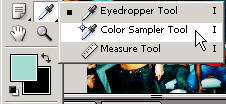 allows you to collect up to four different 'points' of color
information on any open documents. The results of the data is shown
on the Info palette.
allows you to collect up to four different 'points' of color
information on any open documents. The results of the data is shown
on the Info palette.
Just click in different places where you want to collect the color
data from for up to four times to get your different readouts.
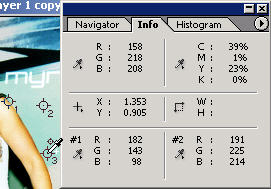
Using this can give you the exact color coordinates which you can punch in to replicate and use in another design of yours (for example). It's kind of like your in-house Pantone color picker (which Photoshop supports and houses).
You can also move each of these bad boys around by placing your cursor over it (still on the I tool) and then moving it to where you want to collect data. I guess NASA developed something like this for Mars.
You can clear out all of these samples by doing this (like erasing them). Or you can right click and choose Delete when above a sampler.

More good news? You can switch to other tools and continue about
your work and the samplers will be there when you come back to the
color sampler tool with the locations and color data still retained
on the Info palette. They just won't be there when you save and
close the file (gone with the wind like the history palette).
For this and other cooky misgivings grab a hold of the
Basic
Photoshop DVD tutorials training program.