

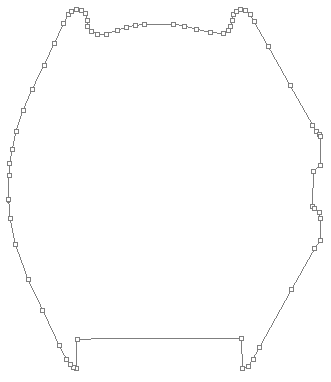
This tutorial is made for Photoshop 7 for advanced users but it also can be done in 6. There might be some small changes in steps though. You can see the final result in my portfolio (brusberg.net) or at the end of the tutorial.
First of all, the watch is much bigger than you see here. It's about 1000*700 pixels. This is so you can work better with the details. And remember that this is a guide and a kick in the right direction. I'm not showing you how I did every little thing. The language causes some trouble for me but I hope that you can follow it thru. This tutorial have a lot of layers, so to make it easier you better use Layer Sets. One for the body, details knobs etc. It's under Layer>>New>>Layer Set.
Start of and use the Pen tool
 to make the shape. When your finished, right click on the shape and fill it with mediumgrey. You can also Define Custom Shape (Editmeny) before you erase it.
No, I didn't use that many Anchor Points.
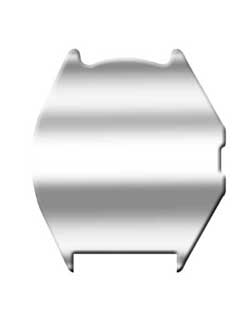
First you apply the layer style Bevel and emboss and then Gradient Overlay (grey-white-grey-white etc)
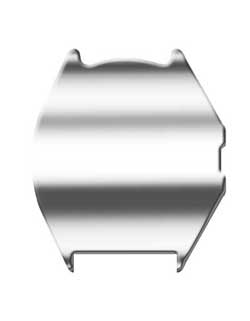
The next step is to use an Adjustment layer to curve it up a bit. Ctrl-click on your watch layer to load the transparency and make an adjustment layer (Curves). The advantages with using adjustment layers are that you can always go back and change your settings.
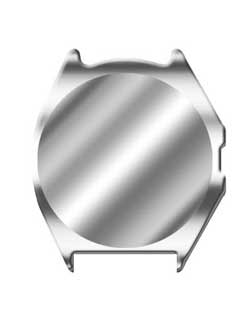
Use the Marquee Tool to draw a circle on a new layer and fill it with the same gradient as before. Don't use the same angle as before.
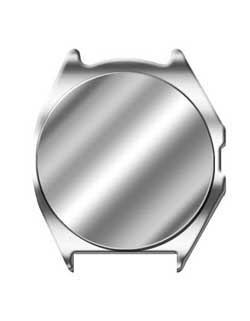
The next step is to apply Bevel and emboss and a small Drop shadow to lift it up a bit from the rest of the watch.
