The pen tool can be quite difficult to actually master when using for advanced drawing including making curved paths but for now I'll give you an introduction to the Photoshop pen tool (& lead you into path editing) and how to use it to make a selection.
You can use the pen tool for drawing and creating your own custom shapes/vectors as paths or you can use it to make a selection. Here we're going to use it to make a selection but you'll be able to understand it enough to make a shape. Choose the pen tool (P).
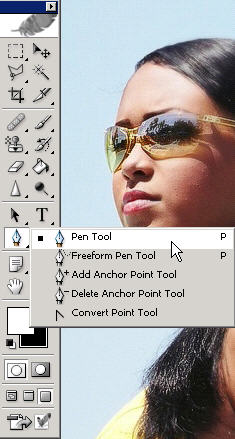
Make sure that you are on 'Paths' in the middle of the options bar as shown.

Since you are going to make a selection, just use it to 'click' in new anchor points along the edges of your subject as shown. Later you can use the pen/path editing tools to make adjustments.
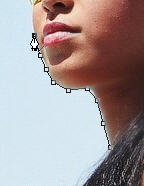
Just keep making anchor points around your subject staying as close to the edge as possible.

You will have to meet both ends together to 'close off' the path you are creating.
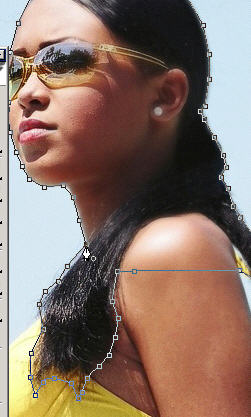
Once you have closed off your newly created work path. You can view it in the Paths palette.
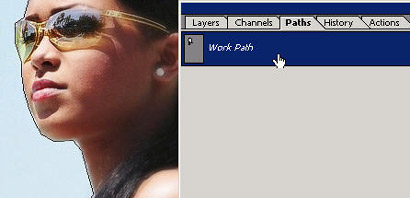
When you click off of the Work Path and onto the grey area the Path you made will be de-selected.
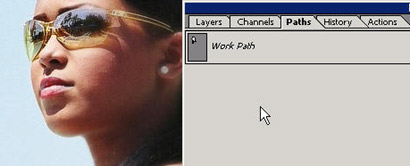
You can always come back to the Photoshop Paths palette to
turn on or off the different paths for display or editing.
You are so smart to be learning from Basic Photoshop because it took
me 2 years of ignorance before I finally figured out the pen tool.
So please keep learning from the knowledge of others and save the
heartache on yourself.
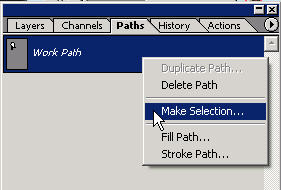
Now, you can right click and choose 'Make Selection'. This will convert the work path into an actual selection that you can use.
Note: You can also create selections into Work Paths..Photoshop
is flexible.
The work path is just a way of storing (and taking up mere nanobits
of space) your shape or selection (in the form of a custom shape).
Now you should have a good understanding of what the pen tool can
do. Some people use it to create vector design (yikes) I'd rather
master Adobe Illustrator.
When the Path is highlighted in the paths palette you will see the path outline around the subject. Here I've Ctrl Clicked on the layer icon to create a selection. When both of these (path and layer selection) are selected you'll see smaller marching ants.
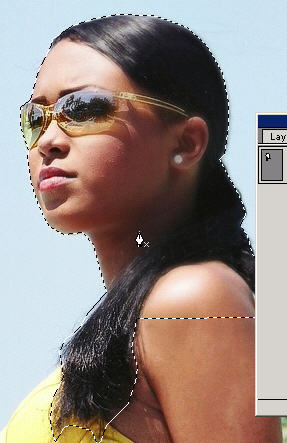
Now that you've used the pen tool to make your very first pen tool selection, go to the layer you need to be on in the layers palette
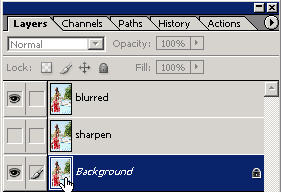
and switch to the moVe tool. Use the move tool to move the selected layer around then undo it in the history palette.
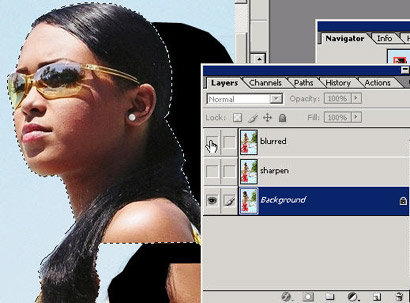
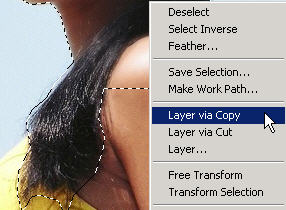
Now you know the basics of the pen tool. This and all other tools are covered in practical examples & tutorials in the Basic Photoshop video training program. If you want you can right click and do a layer via copy to put this selection onto its own layer. Paths take up much less space (than a pixel layer) if you are willing to get comfortable working with them.