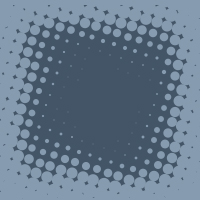
Open a new document. I've chosen 200x200 px. Set the foregroundcolour to a bright colour and the fill the layer with it.
Go to layers-palette and pick channels-palette. Create a new channel and pick Rectangular Marquee Tool. Make a rectangle on the document and fill it with #FFFFFF. Remove the selection with Ctrl + D.
Go to Filter > Blur > Gaussian Blur and set it to 10 px. Then Filter > Distort > Twirl and set it
to 150*. Go to Filter > Pixelate > Color Halftone
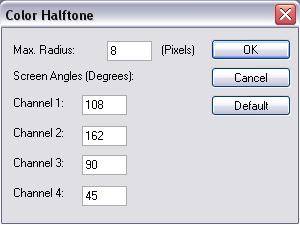
In channels-palette you hit "Alpha 1" while you holding Ctrl down. In that way you select it.
Go back to layers-palette and activate the background-layer.
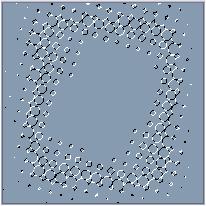
Now set your foregroundcolour to a dark colour and fill the selection.
You are finish.