Open a new document. Reset the colours by hitting D on your keyboard. Pick the text-tool and type a word.
Go to Layer > Merge Down (ctrl e) and then Filter > Blur > Gaussian Blur and set it to about 1,5 px.
Then you go to Image > Adjustments > Invert (ctrl + i) and Filter > Distort > Polar Coordinates and set it to ”Polar to Rectangular” Go to Image > Rotate Canvas > 90 CW and then Filter > Stylize > Wind and set the wind from right side. Repeat this step by hitting Ctrl + F three times.
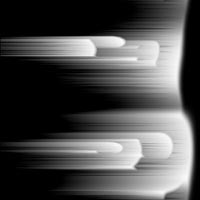
Rotate the picture again, Image > Rotate Canvas > 90 CCW.
Go to Filter > Distort > Polar Coordinates and set ”Rectangular to Polar”. Then go to Image > Adjustments > Auto Levels (ctrl + shift + l)
Now it look cool.
You are finish now unless you want some colours on the document (ctrl + u).