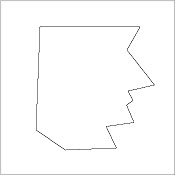
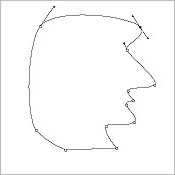
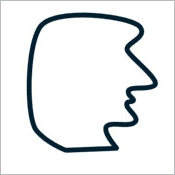
Open a new dokument with background - I have chosen 200x200 px.
Create a new layer and grab Pen Tool. Hit D on the keyboard to reset the colours. Go up in Options Bar and set these settings...

Then place 3 points on your document with Pen Tool. Like a mountain.
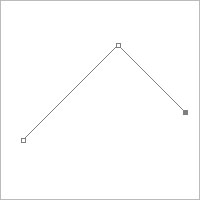
Rightclick Pen Tool in the Tool-menu and pick Convert Point Tool. Pull to the right side in the central point with Convert Point Tool. Then the point will get a nice and smooth edge.
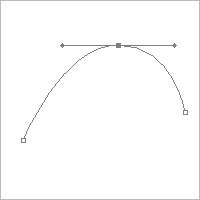
The next step is based on the settings for Brush- or Pencil Tool. Brush Tool makes the smoothest edges so I have choosed that. Grab Brush Tool and check its settings in Options Bar. Brush Mode has to be normal and the diameter is set to 'Hard Round 9 Pixels'. The foregroundcolour may not be the same as the backgroundcolour.
Then grab Convert Point Tool again and rightclick on the document, pick 'Stroke Path'. Now a window pops up. Set it to 'Brush' and click OK. Hit 'Delete' on the keyboard twice to remove the points.
You are finish.
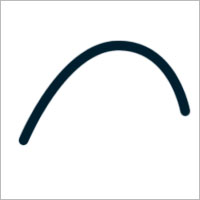
Here is another example with Pen Tool and Convert Point Tool.