

This tutorial has been created and tested with Macromedia Dreamweaver MX and may not work with every version of the product.
1. Create a new Macromedia Flash document from scratch. Name it whatever you would like.
2. On the first frame of the layer 1 make a big static text box in which you can place your whole text. Now place the text into it, and click the Selectable button in the properties (so that the user can highlight it). And name the first layer text.
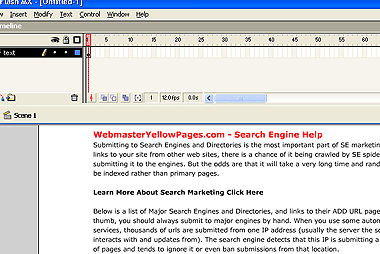
3. At this point we will need to create a mask layer. To do this, you will need to create a new layer above the text layer. Title this new layer scrollarea.
4. In your new scrollarea layer, make up a rectangle using the rectangle tool the size of the area you want to be seen. As in the size of the scroll area.
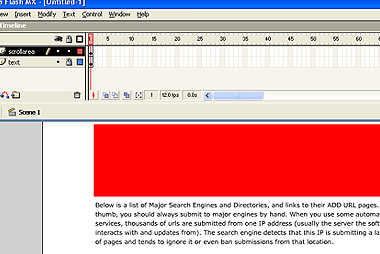
5. Now in order to finish this mask layer, you will need to right click on the scrollarea layer and select mask. This will cause the contents of the text layer that are outside of the rectangle to disappear temporarily.
6. Make sure you have locked the scrollarea layer and have made it invisible (click the dot under the eye icon next to the layer). Now select the text layer and the text you have placed in it. Convert this text into a movie clip (press F8 on your keyboard). You may need to unlock this layer to select the text. In the Movie Clip options select the MovieClip radio button and name it scrolltext, then hit OK. Now your text box is a MovieClip . Now in the properties window of the MovieClip, name it scroll_text in the instance name field, then lock the layer once again.
7. For the next part of this tutorial you will need a new layer titled buttons. This will house your scrolling buttons. To create these buttons, draw two arrows shapes (or whatever you would like in place) facing opposite directions. Then select each one separately and convert them to a button, respectively named arrowUp and arrowDown, like so.
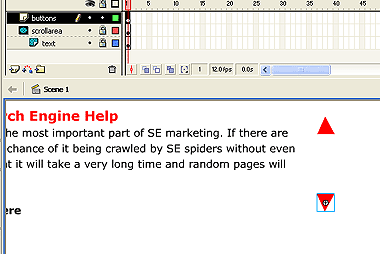
8. Fill in the Actions for each respective button.
For the arrowUp button use the following actions (copy and paste it into the actions using expert mode).
| on (press, release) { scroll_text._y += 30; } |
For the arrowDown button use this:
| on (press, release) { scroll_text._y -= 30; } |
There
you have it, a simple scrolling method. While it does not stop the user
from scrolling too far above or below, it does get the job done. Stay
tuned for a more advanced form of scrolling.
