

Welcome to Blueshout's Abstract Text tutorial! Make your own funky text.
This tutorial aims to be alittle different, and can spice up any image you care to cater it for.
Phase One:
Open up your image, I use 300 x 300, and fill your background in white (Note: Needed! Can change later.).
S1: With your text tool, I use font size 72, and colour 5DBC5A (Colour doesn't matter), write your text.
S2: Filter>Stylize>Wind, with "wind" selcted and "from the right".
S3: Filter>Artisic>Plastic wrap Just add a defulat one. It should be looking like this:

S4: Add a defualt crome. Filter>Sketch>Crome
Phase Two:
Add this Stroke:
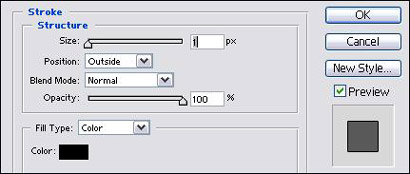
Add this Outer Glow (If you don't want the white background this is the time to change it, zoom in, and using the eraser tool, cut away any white):
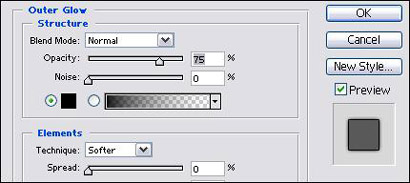
Add a normal Satin, but the Opacity at 10.
Then finally, "Ctrl+U" with these settings, feel free to use others, they all look good:
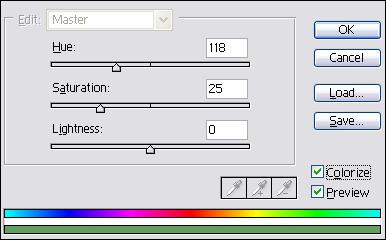
And you've finished, it should look something like mine:

If not, don't worry, just keep on trying.
