
Start a new document with black background. Then use the ellipse shape tool to create a round shape in the center of the canvas, size in proportion to mine.

Hold down SHIFT while creating the shape to make a perfect round shape.

Now apply the following layer styles to the shape: (Layers->Layer Style):


(the colors dont have to match, use your own, or something close to mine will do it).
Then go to Layer->Rasterize->Shape

Next, use the Lasso tool and make random thin selections inside the shape, see my image below.

Hold SHIFT while you are making the selections so each selection is added together to create multiple selections.

Now make sure you got your Shape 1 layer selected as a working layer, then just hit DELETE to delete the selected area from the shape. Now just CTRL+D to deselect.

Now use the elliptical marquee tool to make a round selection, same size as the shape.


Now go to Filter->Distort->Spherize. Set amount to about 80%.
Now CTRL+D to deselect. Then go to Layer->Flatten Image.

- Now go to Distort->Polar Coordinates: Options: Polar to Rectangular
- Now rotate the image 90CW: Image->Rotate Canvas->90CW
- Next, go to Filter->Stylize->Wind: Method: WInd. Direction: From the Right
Press CTRL+F to reapply.
- Next apply the Wind Filter again, this time, set direction to From the Left.
Press CTRL+F to reapply.

Now rotate the image back to normal: Image->Rotate Canvas->90CCW
Then go to Filter->Polar Coordinates. Set to: Rectangular to Polar.

Now make a round selection around the shape again using the marquee tool, then go to Select->Inverse, then Select->Feather, and enter 15

Now go to Filter->Distort->Ocean Ripple. Ripple Size: 10. Ripple Magintude: 2
CTRL+D to deselect.

Now apply some color balance settings to it by adjust the color sliders to come up with some cool colors (Image->Adjustments->Color Balance) . Or you can use the Hue and Saturation instead.
Here's mine using color balance.
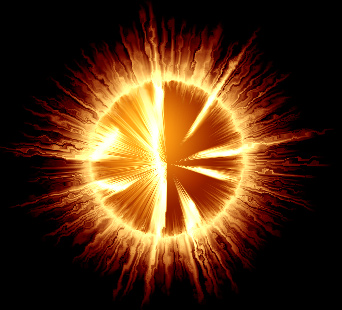
Another one.

