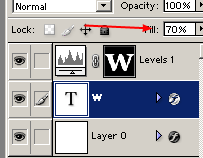
Start a new document, and use your type tool to create your text. Make it big and bold, and color #B7E1F7.

Note: The settings I use in this tutorial is for my text size 350px with font Georgia. If you are using a different font, at different size, you may need to adjust some settings to get it look right.
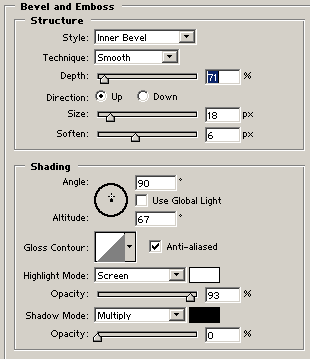
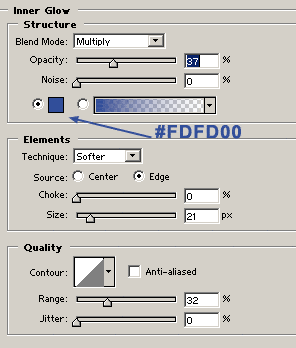
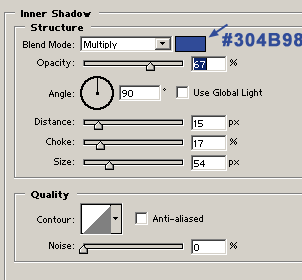
Now just apply the following layer style settings to the text.
Layer->Layer Style - >Bevel and Emboss:



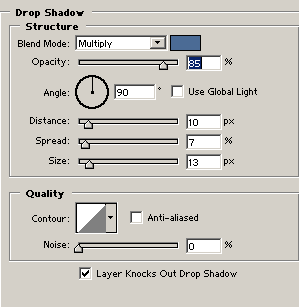
Layer->Layer Style - >Drop Shadow:

Applied to a shape


Another Shape:

Now CTRL+Click on the text layer to make a selection, then click on the Add adjustment layer from the bottom of the layers pallete, and select levels.
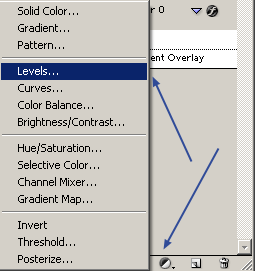
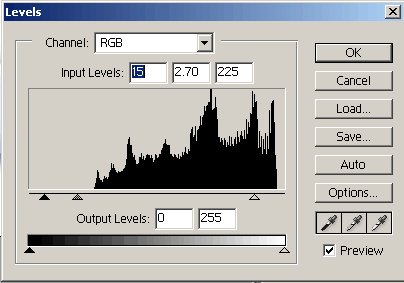
and adjust the sliders so you get a picture like the one to the left. Here is what i used:
This technique can be applied to shapes and objects too, not just text, so experiment and come up with something cool.
Here I applied it to some shapes words using the above technique, only changed the original color from step 1 and set the fill level of the text to about 40%