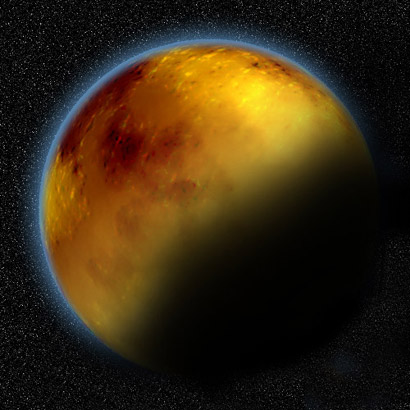
- Start a new document 500x500 fill the background with black.
- Create a new layer.
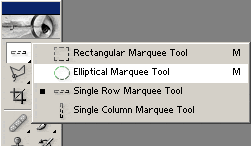
- Use the Elliptical marquee tool and draw a circle selection. Hold down SHIFT while you are doing this so you get a perfect circle.
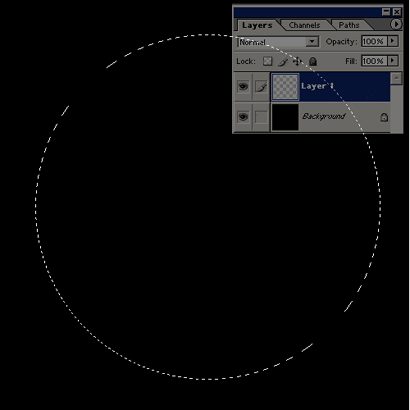
- Fill the selection with #978B57 (DO NOT deselect yet).
- Then go to Layer->Layer Style->Bevel Emboss
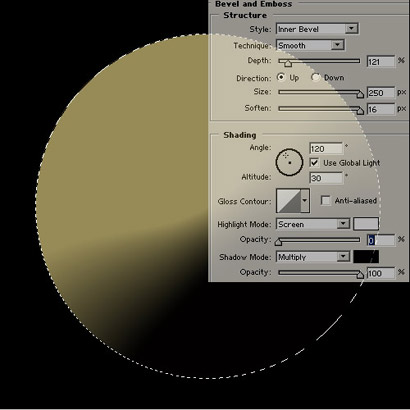
- Set your foreground color to #BEB074 and background to #736942

- Create a NEW LAYER then go to Filter->Render->Clouds
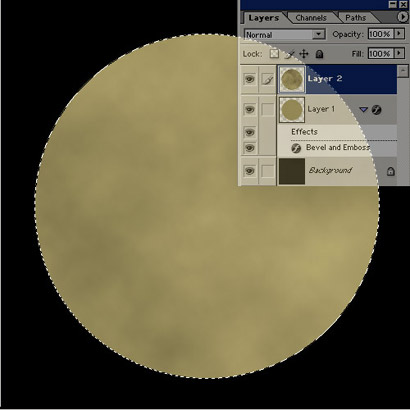
Then go to Filter->Sharpen->Unsharp Mask
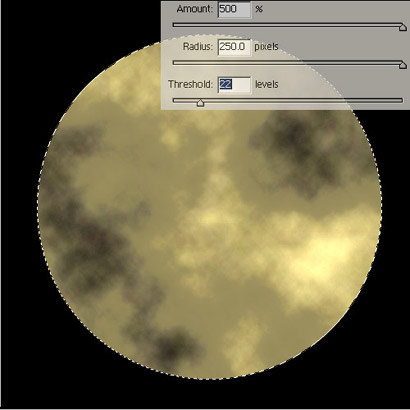
- Duplicate this layer (CTRL+J or drag the layer into the "new Layer" button).
- Rotate the new layer by 90CW. Edit->Transform->Rotate 90CW
- Set the Blending mode to "Overlay"
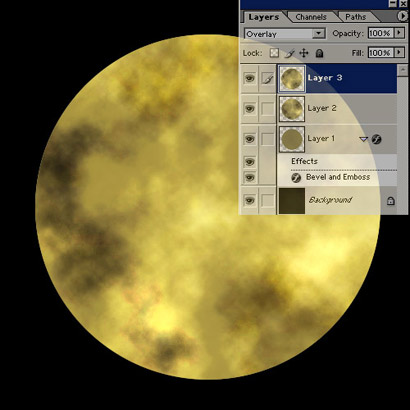
Now Duplicate that last layer you just duplicated, rotate 90CW, and set blending mode to Overlay (basicly a repeat of the above step).
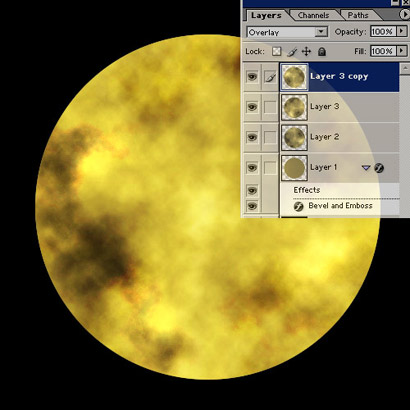
Now Merge the 3 layer together (Layer 2, Layer 3, Layer 3 copy from above image). To do this, link the 3 layers together by clicking on the empty box to the right of the layer's thumbnail, then press CTRL+E
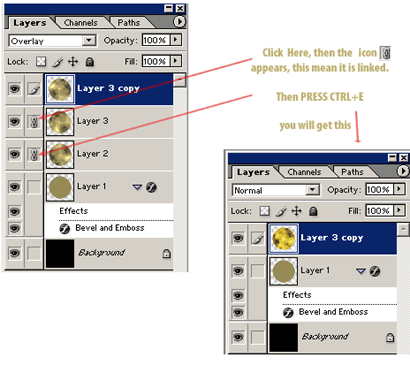
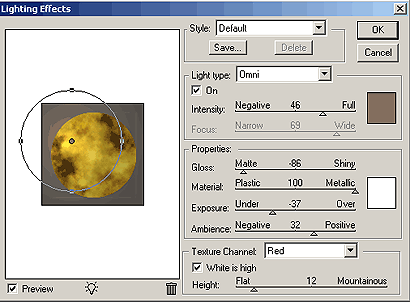
Now go to Filter->Render->Lighting Effects. Color Used: #88725D
Note: For this lighting effect, you can give your planet more texture/mountainous effect by raising the "Height" value towards "Mountainous". The height the value, the rockier your planet will look.
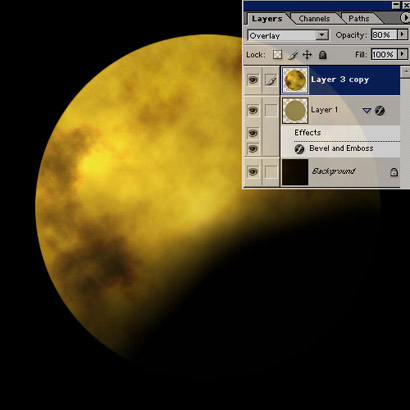
Set this layer blending mode to overlay, and turn the opacity down to 80%
Now press CTRL+E to merge the top layer and the bottom layer (not background) together.
Now CTRL+CLICK the planet layer to load the selection.
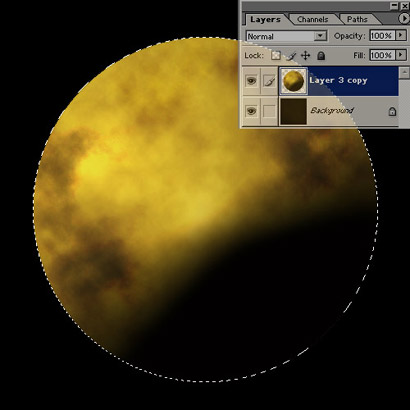
Now go to Filter->Distort->Spherize, set amount to 100%, mode: normal
Then do it again, Filter->Distort->Spherize, this time, set amount: 50%, mode: normal
Now Duplicate the planet layer, then apply this filter to it: Filter->Sharpen->Unsharp Mask
Then set this layer's blending mode to "Soft Light", and tune the opacity down to 70%
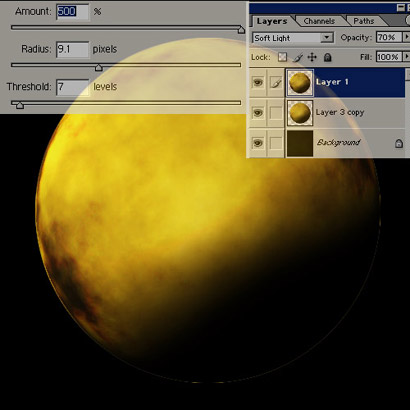
Press CTRL+E to merge the 2 layers again. Now you have a planet. Now lets add some glow/atmosphere to it.
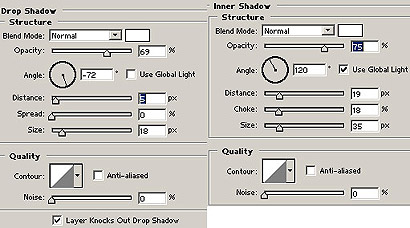
Apply the following drop shadow and inner shadow.
After resizing, here is mine.
If you want to learn how to create stars, see the simple stars tutorial
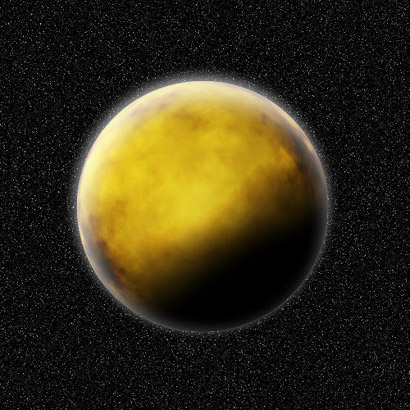
Another one. With some minor adjustments in the light effects step and changed the color of the dropshadow and innershadow step.