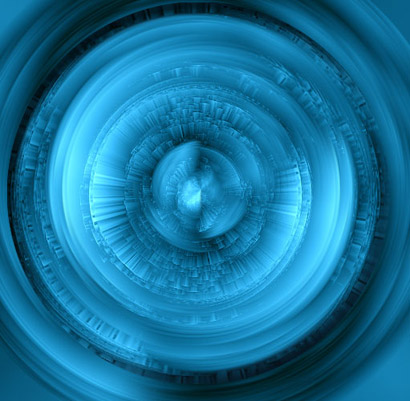
Start a new document 600x600.
Create a new layer and fill it with black.
Reset your colors to default by pressing "D".

Then go to Filter->Render->Difference Clouds.
Press CTRL+F to reapply the filter. You should get a darker effect like mine.
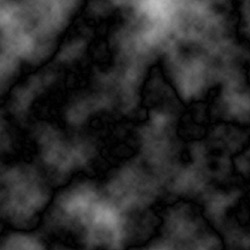
Then Filter->Stylize->Wind.
Method: Wind
Direction: From the left.
CTRL+F about 6 times to reapply the filter.
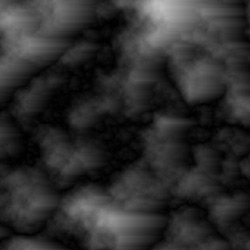
Now Images->Rotate Canvas->90CW
Then CTRL+F 6 times to reapply the wind filter.
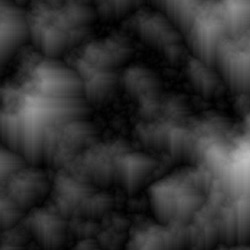
Then rotate the image back. Images->Rotate Canvas->90CCW
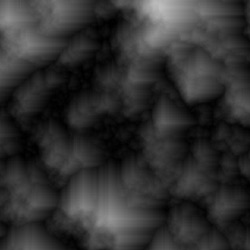
Then Filter->Sharpen->Unsharp Mask.
Amount: 500%
Radius: 2.5
Threshold: 0
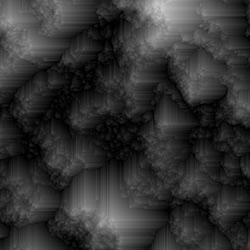
Then Filter->Distort->Polar Co-ordinates.
Options: Polar to Rectangular.
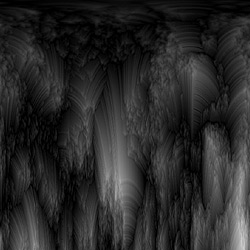
Then Filter->Stylize->Wind
Method: Wind
Direction: From the Left.
Reapply about 6 times by press CTRL+F 6 times.
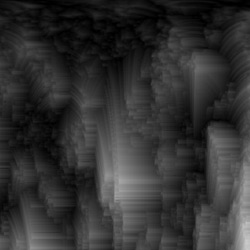
Here you can do 1 of 2 things, each will give a different effect. Only do one of the following, NOT BOTH.
1. Image->Rotate Canvas->90CW (surface points upwards.)
or
2. Image->Rotate Canvas->90CCW (surface runs flat.)
In this tutorial, i'll do the option #1.
Then Filter->Sharpen->Unsharp Mask.
Amount: 500%
Radius:1.2
Threshold: 0
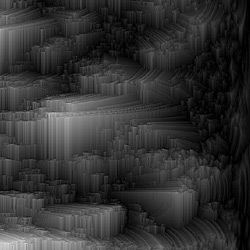
Then Filter->Distort->Polar Co-ordinate.
Options: Rectangular to Polar.
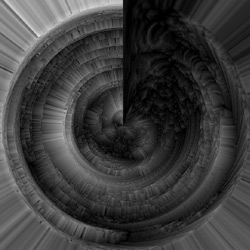
Now Duplicate this layer (CTRL+J) and then Edit->Transform->Flip Vertical.
Use the Eraser tool brush size of 200 or 300 SOFT EDGE to erase out the black line to reveal the bottom layer, giving it a full circle look.
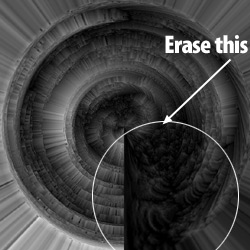
Then Layer->Flatten Image to merge all the layers together. You should now have 1 single layer with an image similar to the left.
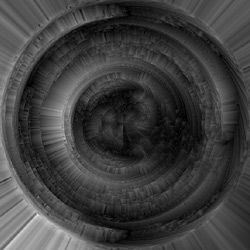
Option 1: 90CW
Now open the Color Balance (image->Adjustments->Color Balance) box and play around with the colors sliders to get some really nice colors.
You can try The Filter->Sharpen->Sharpen to sharpen the image, giving it more rough details.
You can also try the Filter->Distort Spherize filter with a negative (-) value.
Like always, play around and come up with something unique
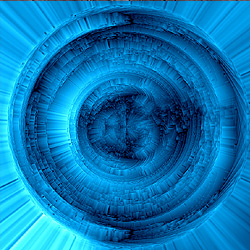
Option 2: 90CCW
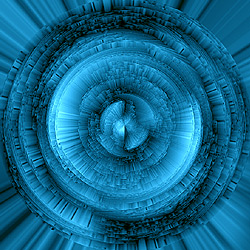
Option 1: Image->Rotate Canvas->90CW
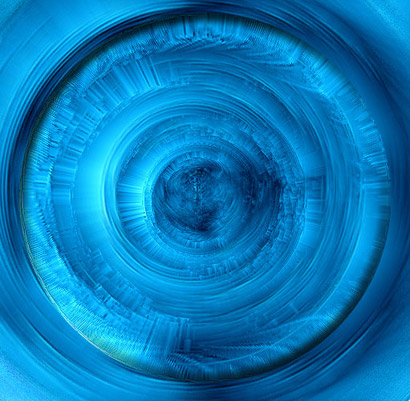
Option 2: Image->Rotate Canvas->90CCW