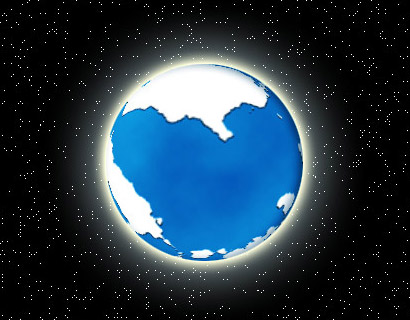
Start a new document 600x600. Set the foreground and background to Blue and White.

Then Go to Filter->Render->Clouds
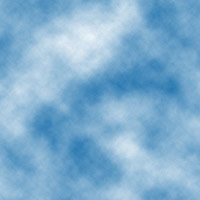
Then go to Filter->Sketch->Note Paper.
Image Balance: 35
Graininess: 0
Relief: 25
You can play around with the image balance to get the shapes of your continents.
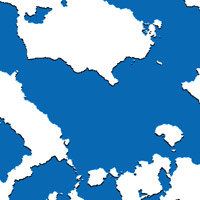 Use the circular marquee tool and make
a round selection as big as you can on the image. Hold
down shift while making the selection ensures you get
a perfect circle.
Use the circular marquee tool and make
a round selection as big as you can on the image. Hold
down shift while making the selection ensures you get
a perfect circle.
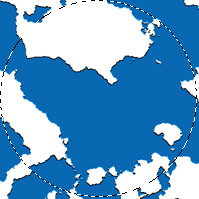
Then go to Filter->Distort->Spherize
Amount: 100%
Then Edit->Copy
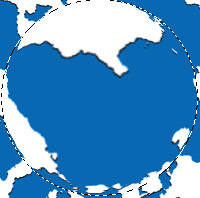
Then CTRL+N to create a new document.
The newly created document size should be left as is because photoshop will use the size of the copied image, else, just create a new document about 650x650.
Then in the new document, go to Edit->Paste to paste the image onto the new document.
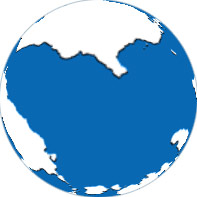
You should now have a globe on white background.
Add a 1 pixel stroke to the image.
If you want to learn how to create stars, See the simple stars tutorial
A little bit of modification, I came up with this.
Download final .psd file To see the extras I did.