

- Start a new document.
- Create a new layer.
- Then use the rectangle marquee tool and create a selection the size of the button you want to create and fill it in with light grey (#E3E3E3)

Now CTRL+D to deselect and zoom into the image large enough for us to work with single pixels (i zoomed in at 600%)

- Create a new layer.
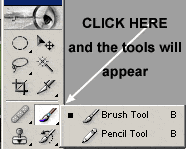
- Use the pencil tool with 1 pixel hard edge brush selected

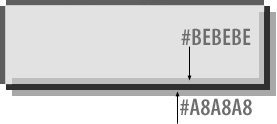
Now draw another right and bottom line (inside and outside) using color:
(Outside #A8A8A8, Inside: #BEBEBE)
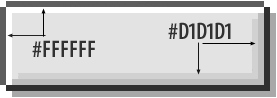
Now draw another line inside, this time, all 4 sides. Use color:: ( Right and Bottom #D1D1D1. Left and Top: #FFFFFF
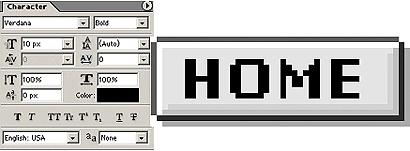
Now use the type tool to create your text. We will use "Verdana" I think this is standard on windows (if you dont have it, try arial) and use the following settings in your characters pallete to create a pixel font.
Then apply the following drop shadow (Layer->Layer Style->Drop Shadow) to the text layer:
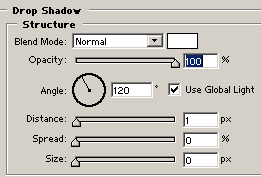

Now zoom out to acutal size and there you have it, a microbutton to use for your website.
Here is mine: download .psd file

