

Start a new document about 300x300. Fill background with a dark color. I used #47505B
- Use the Elliptical Marquee tool and make a circle selection, hold down shift while your doing this so you get a perfect selection.
Note: For this step, you can actually make any shape you want, im using a circle as an example.
- Create a new layer.
- Fill this selection with any color. I used white

Now apply the following layer styles to this layer.
Layer->Layer Style->
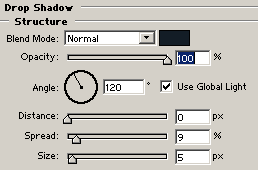
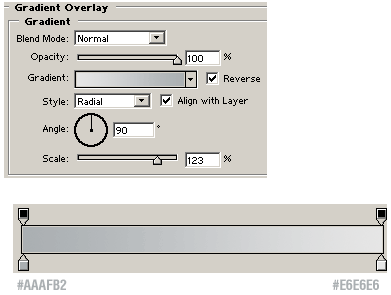
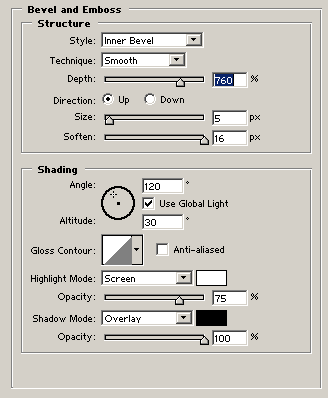
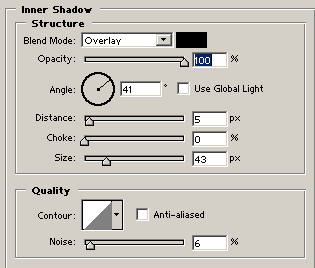
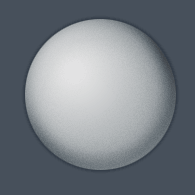
Now duplicate this layer. (Layer->Duplicate Layer).
- You should now have 2 layers exact the same.
- But now we will change the color of the 2nd layer, Go to Layer->Layer Style->Gradient Overlay and modify it so it looks like this ->
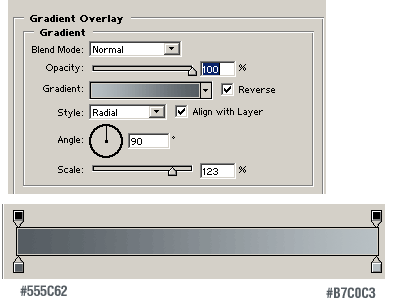
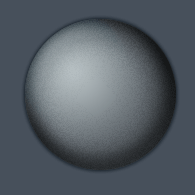
Now duplicate this layer. (Layer->Duplicate Layer).
now we will change the color of the 3rd layer, Go to Layer->Layer Style->Gradient Overlay and modify it so it looks like this ->
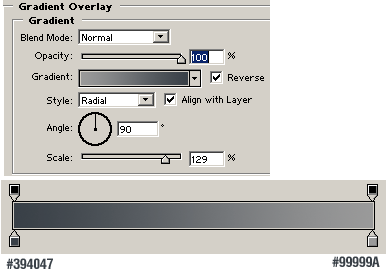
Now we have 3 layers with different colors.
Its time to reveal the layers behind it.
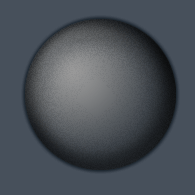
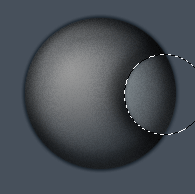
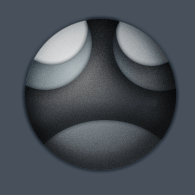
Now make a smaller selection than the previous but within the same area, choose the middle layer as the working layer, then hit delete, this will reveal the bottom layer.
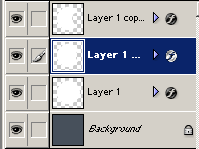
You should get the idea by now, we delete the upper layers to reveal the lower layers.
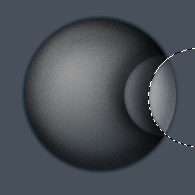
This was a very simple shape and idea because I want to show you the technique to create multi-layered interfaces. You should be creative and create odd shapes and sizes, experiment with different settings for the layer styles, or even more layers.
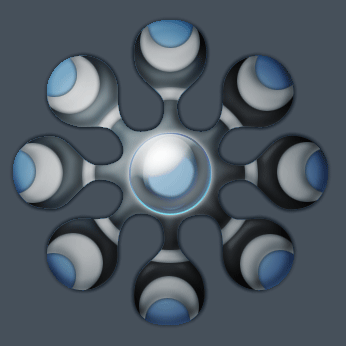
Heres one I applied to one of photoshop's shapes and used different layer styles. Dont ask me what it is :P
Download PSD Files : First
Image | Above Image
