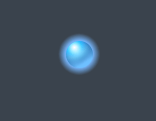
Start a new document and use the circle shape tool to create a circle. Hold down SHIFT while your drawing the circle to get a perfect circle.
My circle is 27px by 27px.
Now we just apply a whole heap of layer styles to it :).

Outer Glow
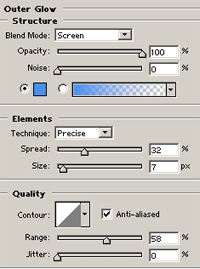
Blue: #4991EA

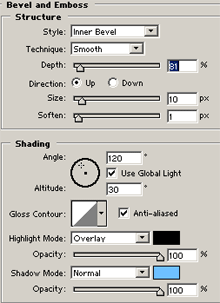
Black: #000000 and Blue: #6EC0FF

Gradient Overlay
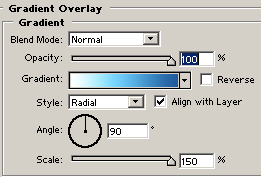
The gradient color: #FFFFFF > #7BD5FF > #1D589A

Stroke
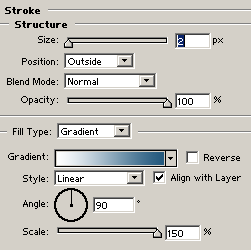
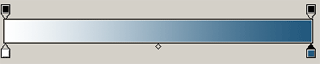
The Gradient Color: #FFFFFF-> #21577C
Create a new layer.
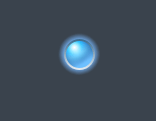
Then Use the circular marquee tool and make a selection smaller than the button and fill it with white.


Then erase the circle leaving just the top edge, shaped like the moon.
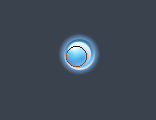
Set this layer's blending mode to "Overlay". Now use your own creativity to put it into use.

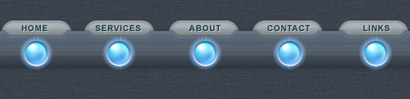
Here is how I used it on an interface.
You can Download .psd file file to use or see how it was made.