

Start a new document about 600x100.
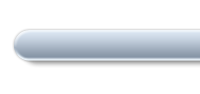
Use the rounded corner shape tool and draw a long rectangular shape. lets make it 567x30 (you can see the size of the shape you are currently drawing by viewing the "Info" Pallete".

Go to Layer->Layer Style->Gradient Overlay.
Apply a Linear gradient from top to bottom using colors #BAC3CA -> #FFFFFF

Go to Layer->Layer Style->Bevel and Emboss.
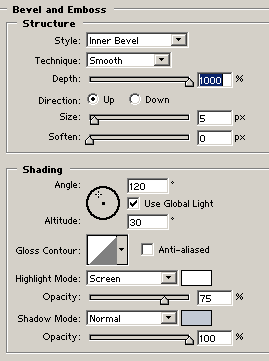

Then just add a little of dropshadow (Layer->Layer Style->Drop Shadow)

Now use the rounded corner shape tool again and create another rectangular shape above the other one, make this onea little larger than the other one. Lets make it 580x32.

Apply the following Gradient Overlay.
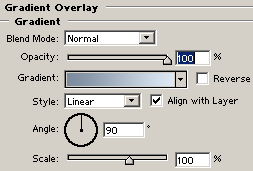
Colors Used: #DDE8F4 -> #7C8B9D

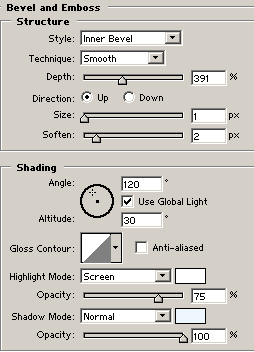
Now apply the following Bevel and Emboss
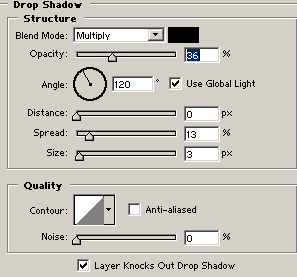
Then this Drop Shadow

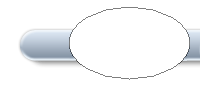
Now use round shape tool and draw an OVAL shape over the bar.
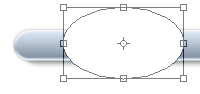
press CTRL+T to activate the transform tool. position your cursor just outside one of the corners so we can rotate the shape tool.
CTRL+CLICK on the oval shape layer to make a selection of it. then hide that layer and choose the top bar layer (the larger one).
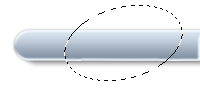
Then just hit delete to reveal the bottom bar.
Repeat the selection process to create areas for your other nav buttons
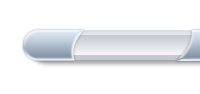
Here is mine:

