


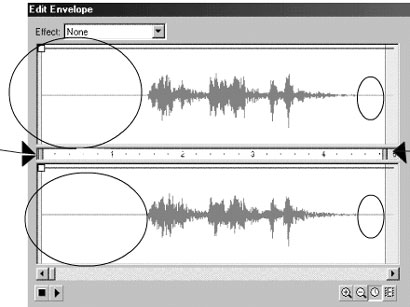
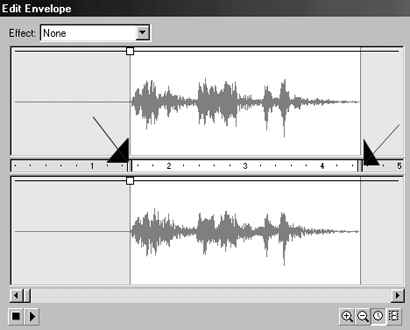
If you do not have access to a sound editing application in which you can optimize your sounds, Flash® gives you limited ability to "edit" your sounds. That is, you can delete from your sound files any unnecessary silence or gaps which you would not want to include in your presentation or increase your file size. You can edit your sound file by using the Time In and Time Out control points indicated by the arrows in the diagram. By dragging these points, you can change the start and end points of your sound. As mentioned, this is useful to take out any gaps or silence that may interfere when you loop the sound or simply to "delete" space that is not necessary in your movie. In the diagram below, we move the in/out points to avoid using the silence at the beginning and end of the sound, represented in the circles. The second diagram shows the "after" state, when the in/out points have been used to "squeeze" out the unecessary silence that can add size to your movie.
These points can also be used to capture a portion of a sound that is already in your library. For example, if you are using a sound file in your movie that has several sections and you wish to use only one of the sections in another part of your movie, you do not need to import the desired section separately and add size to your file. You can "recycle" that particular section from your song by using the start and end points to pick out only the desired section. It may take you many tries to get to the perfect start and end points. You will probably need to zoom in at maximum to get right on the mark. Once you have the section isolated you can then set your section to loop as many times as desired.
In brief, you can always use any portion of a sound once you have it in your library.
