


I used Photoshop 6.0 to create this Button. But I am sure you can do it with Photoshop 4.0 and higher versions.
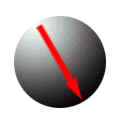
Height:150 Width:150 White Background.
File > New
Shortcut Ctrl + N
Create a new layer. Layer > New > Layer
Shift + Ctrl + N
Choose elliptical marquee (M)  .Hold the shift key down while drawing your circle.
Choose Gradient tool. (G) 
Make sure you have Radial Gradient one selected.
Start from the top left corner and finish at the bottom right corner.

Select > Modify > Contract
Turn the selection with image 180
Edit >Transform > Rotate 180
Contract selection by 2.
Select > Modify > Contract
Turn the selection again by 280
Edit > Transform > Rotate 180

Image >Adjust > Hue/Saturation Check colorize.
Play with the values this till you get the color you like.

