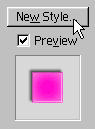
I This style will render one of plastic appearance.

1.) Create a New File. Go To File >
New. Make it 400 X 150 pixels on a white
background at 225 dpi.
2.) Press letter "D" on keyboard to
set foreground color to black. Select the Text
tool and type something simple. (I used Arial Black
48pt smooth.)

3.) Launch the Layer Style palette and
go to Color Overlay. Color #FF00CC. (Follow
all panels exactly now.)
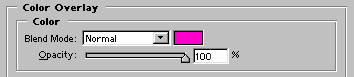

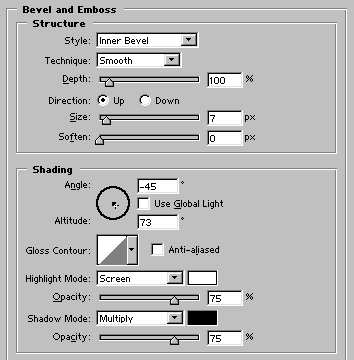
4.) Switch to Bevel and Emboss. 1st
Color #FFFFFF. 2nd Color #000000.

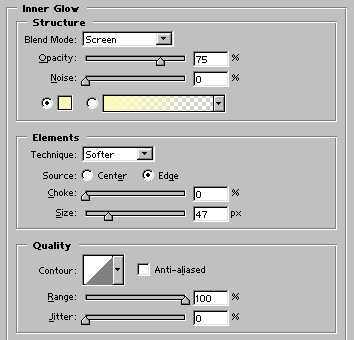
5.) Switch to Inner Glow. Color #FFFFCC.
6.) Switch to Drop Shadow. Color
#000000.
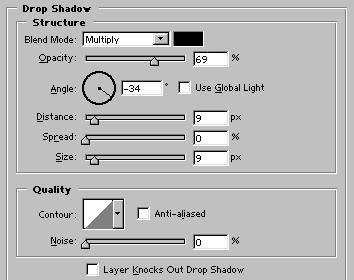
Text is now completed.

Layers palette should now look as such:
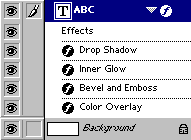
7.) Save the "New Style". Preview
should now look similar.