In this Tutorial, I will show you how easy it is to create rock texture for text.

1.) Let's begin by creating a new file. Go to
File > New. Make it 200 X 100 pixels on a
white background.
2.) Select the Text tool from the tool
palette.

3.) Type something large to fill the space. Click
the Move tool (top right of the tool palette) and
center text.

4.) Now, go to Filter > Noise >
Add Noise. (Rasterize text when dialog box appears).
Follow settings below. Be sure to set to Uniform
and Monochromatic.
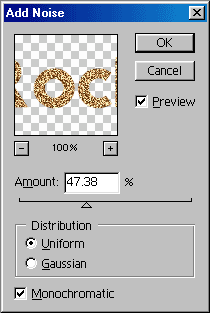
Text should now look similar to this:

5.) Next, go to Filter > Distort >
Ocean Ripple. Follow settings below, or use your
own (just don't add too much effect to where the text
begins to dissolve.)
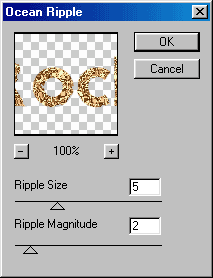
Text will look like this now.

6.) Next, let's add some Bevel. Go to Layer
> Layer Styles > Bevel and Emboss. Follow
settings below.
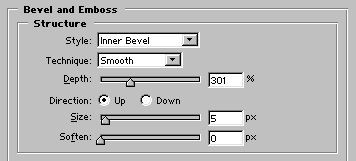
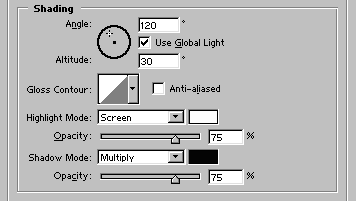
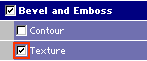
Before you click OK, go to the panel to the left
and click Texture. now hit OK.
Text should begin to be looking pretty good by now.

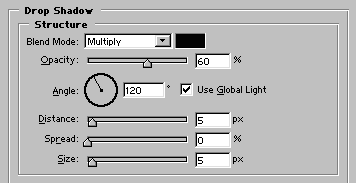
7.) To finish text, go to Layer > Layer
Styles > Drop Shadow. Follow settings below.
Finished text with new background color added.