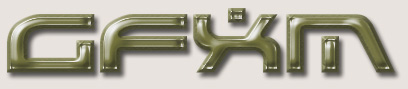
We all know what it is like to make a wrong turn in
Photoshop, press a wrong button or even, EEK, screw
up an image up Royally ! Well, once is a great while,
those mistakes turn into Gold...
I was messing around in Photoshop yesterday while doing
an image for a client, and came across one of the
coolest Metal Text Effects I have ever seen. And,
it didn't require and fancy Channels. Just Layer
Effects and some texturizing. Here are the steps.
Start a New Image, 500x200.
Choose the Vertical Text Tool (T), with White for
your Foreground Color, and slap some letters in there. I
am using GFXM for mine, for obvious reasons. Set
the text size up there pretty high - 100 should
be good. Now, duplicate the layer and choose #6C6C6C
for your text color.
Now, in the Layer Pallette, click the "Add A Layer
Style" button
 .
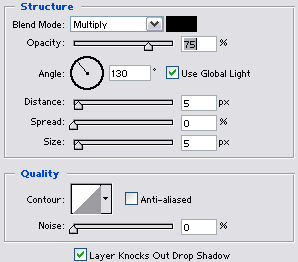
Choose Drop Shadow and apply these settings.
.
Choose Drop Shadow and apply these settings.
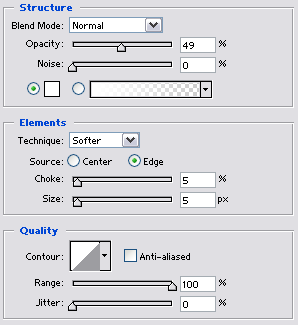
Now, do not click OK yet. Click the Inner Glow
option, and apply these settings.
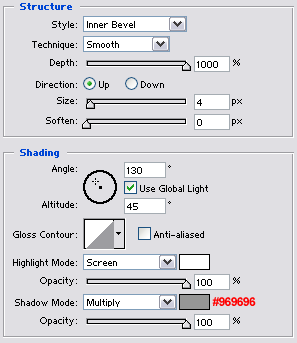
Not quite done. Click the Bevel And Emboss
option, and use these settings.
And, now we choose the Countour option, directly
under Bevel And Emboss and apply these settings.
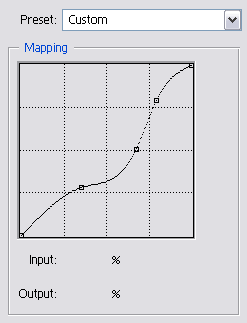
Click OK.
Hold down CTRL and Click the text layer, and go
to Select > Modify > Contract >
4 Pixels... or, if your font is bigger than mine,
set it higher. The point is to get the Marquee around
the flat area of the text. As seen below.

Now that we have our flat area selected, we go to
Filter > Texture > Texturizer and use
these settings.
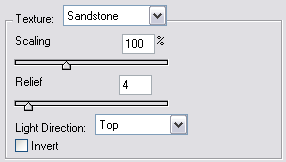
Next, we go to Filter > Brush Strokes >
Crosshatch and use these settings.
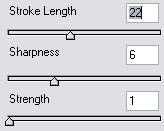
Next, Filter > Blur > Gaussian Blur
with a setting of 3.
If all went to plan, you should have yourself a neat
Metal Text Effect.
Use Image > Adjustments > Color Balance
to give it some color - Blue looks real nice with this
effect. Or, Image > Adjustments >
Hue/Saturation and play with the Lightness
settings to get a polished chrome look to it.
Hope you enjoy this Effect. Depending on the Font
(Arial, Verdana) the effect may not look like mine. I
used a nice little Freeware font called Battlefield
for this. It is my favorite font. You can download it
here.
