

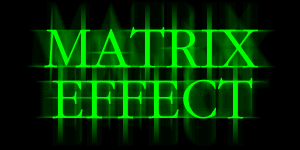
This Tutorial creates the popular effect known from the movie "The Matrix".
1.) Open Photoshop 7.0 and create a
new file. Go to File > New. Make it
300 X 150 pixels on a white background at
72 dpi then hit OK.
2.) Press the letter D on the keyboard
to set the foreground color to black. Now go to
Edit > Fill. Set to 100% opacity and hit
OK.
3.) Select color for text. In the Tool
palette, click on the foreground color to activate
the Color Picker. Type in #00FF00 for
selection and hit OK.
4.) Now select the Text tool and type
something large to fill the space.

Next, select the Move tool to center text.

Example of first text layer. In the Layers
palette, right-click on text layer and go to
Rasterize. (This step is necessary to run
Photoshop's Filters, it turns the text to an
object).

5.) Drag the text layer to the bottom of the
Layers palette and drop it on the New
Layer icon. (Duplicate layer will be generated).
6.) Now, go to Filter > Blur >
Motion Blur. Apply settings below and hit
OK.
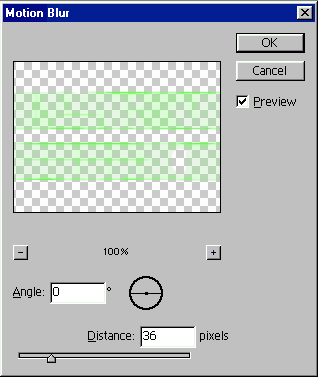
Text should now look similar to this:

7.) Next, Drag the "original" text layer to
the bottom of the Layers palette and drop it
on the New Layer icon once again.
8.) Now, go to Filter > Blur >
Motion Blur. Apply settings below and hit
OK.
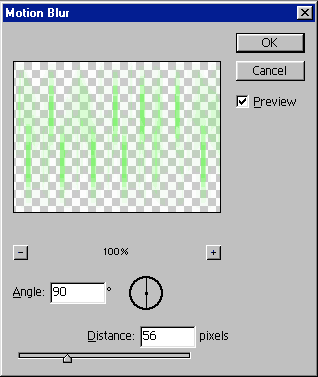
Text is now finished. Compare work to image at top
of page.
