1.) Let's start with creating a new document :)
( 400 x 400 / dpi 72 )
Now press "D" on your Keyboard to get the standart colors black and white.
2.) Now choose the Clouds-Rendering Filter.
Filter > Render > clouds
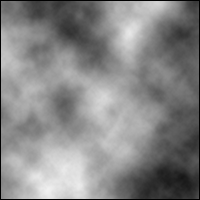
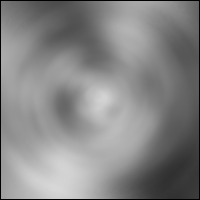
3.) After that we'll choose the
Radial-Blur-Filter.
Filter > Blur > Radial Blur
amount : 40
method : Spin
quality : best
4.) Nice... Now get the Gaussian-Blur.
Filter > Blur > Gaussian Blur
choose 2 px as radius.
5.) Now choose the Bas Relief Filter.
Filter > Sketch > Bas Relief
Set Detail to 14 and Smoothness to 3.
6.) Here comes another Filter named Chrome.
Filter > Sketch > Chrome
Detail : 3 and Smoothness :2
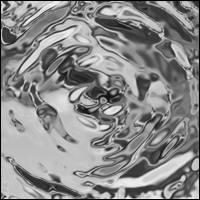
7.) Now we'll need a Color for our
watereffect.
To do that we'll need Hue/Saturation.
Enhance > Color > Hue/Saturation
Hue = 215
Saturation = 60
Lightness = 4
and here's our water-effect :)
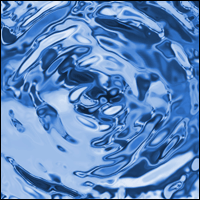
Hope you like our final result.
