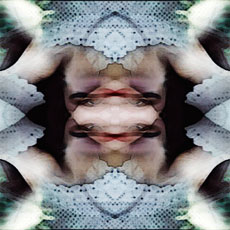
Ok, say I have found an action online or etched on a CD that came with some ancient tome I purchased from Joe’s Online Ancient Tome Emporium. This incredible little script allows me to take an everyday photograph and convert it to a creepy yet intriguing seamless background that looks nothing like the original photo. For example, it takes this…

…and turns it into this.
I LOVE THAT ACTION!
Wish you had an action that did that? Sorry, that is reserved for members of my website. I know, it’s yet another shameless plug, but a guy has to eat, right? What I will do it show you is how to get a print out of another action to use as a personal tutorial. I have an action that makes type look as though it was created from pipes.
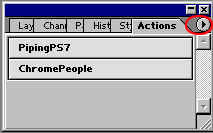
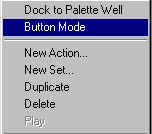
To begin, make sure the Actions Palette is not in Button Mode. To do this, click the small arrow in the upper right corner of the Actions Palette, opening the Actions Menu. In the List you will see ‘Button Mode’. Make sure there is no check mark next to it. If there is, simply click Button Mode to uncheck it and switch to Edit Mode.
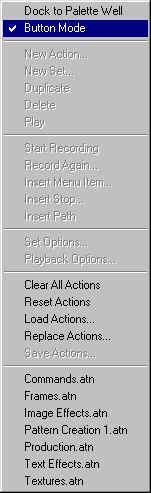
Now you want to clear out all other action sets except the one you want to print. You can do this by either going to the menu again and clearing all actions then reloading the one you want to work with, or simply click and drag the extras to the trash icon at the bottom of the actions palette.
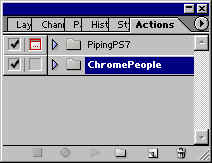
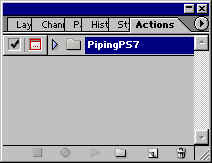
IF YOU DON"T DO THIS, then when you save the action as a printable text file, every action in every loaded set will be included in the saved file. This often results in thousands of extra pages with endless commands. Ok, an exaggeration. But it certainly will feel like a small forest was killed when the printer goes nuts!
In order to save the action as a text file, you need to have the SET selected in the actions palette, and not the individual action. The set name appears at the very top of the list. For those of you used to creating actions this should be second nature, as actions can only be saved in sets.
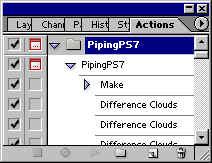
You are ready to save the action. This may require a bit of dexterity. Click and hold down the Command/CTRL + Alt Keys with one hand. Now open the Actions Menu again with the mouse and select ‘Save Action’.
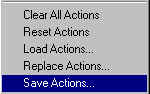
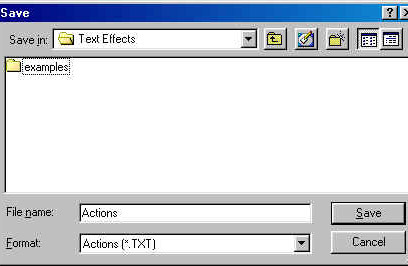
Now when the save dialogue box pops up, instead of the action having a .atn file extension, it will have a .txt extension. Name it and save it to the folder of your choice.

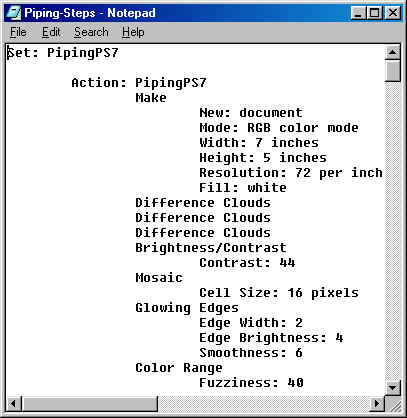
Now you can open the file in your favorite text editor, Word or whatever, and have a complete, step-by-step listing of the process to create the effect.
See you next time!
 Al Ward, a certified Photoshop Addict and Webmaster of Action FX Photoshop Resources (