


We will walk through the creation of a layer style next time, but for this article I want you to become familiar with styles by looking at those included with Photoshop. Here's a snapshot of the Layer Styles Default setup:
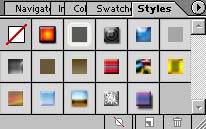
This view is the 'Small Thumbnail view, but there
are actually 5 views for the layer styles:
• Text Only
• Small Thumbnail
• Large Thumbnail
• Small List
• Large List
In addition to the default layer styles shown above,
Adobe has been so kind as to include even more Layer Styles Sets:
• Buttons
• Glass Button Rollovers
• Glass Buttons
• Image Effects
• Text Effects
• Textures
Try loading these one at a time to get a feel for what effects you can do on the fly. I also recommend you walk through the various viewing modes to see which works best for you. I find that the small thumbnail view is easiest to manage, but that is a personal preference.
So what exactly do these styles do? Here's a quick walkthrough with examples. Beginning with a simple text layer, we can go from this...
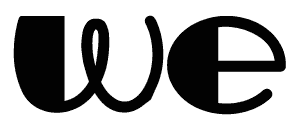
to this....

with one selection- one mouse click!!! Not to mention we can apply this effect over and over and over until the proverbial cows come home.
One more time:
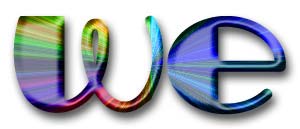
and again with the text:
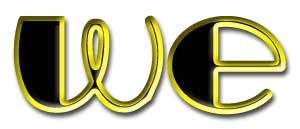
This powerful tool is an excellent assistant to
website designers who want site continuity, as well as being extremely
fun to play with.
 Al Ward, a certified Photoshop Addict and Webmaster of Action FX Photoshop Resources (