To create a logo you need no more than a bit of fantasy and some basic knowledge of Adobe Photoshop. There are thousands of places to take the idea from. In this tutorial we'll use the Nike logo as a base for our logotype. So, let's start…
1. Create a new document 250x150. Set foreground color #ff6500 and background color #908f8f.
2. Choose the Pen Tool (P) and make something like this:
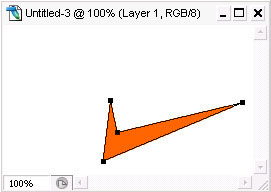
3. Now select the Convert Point Tool and modify your shape:
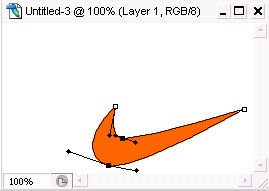
Note: by the way, you just made a Nike Logo! :)
4. Duplicate layer and rotate it to 180 degrees with the use of Free Transform Path (Ctrl+T). Then, holding down the Shift button, drag it along the diagonal upward, until two figures intersect:
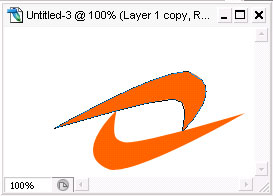
5. Switch background and foreground colors (X) and fill the layer with foreground color (Alt+Backspace):
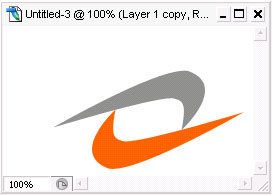
6. Merge your layers (Ctrl+E) and use the Magic Wand Tool (W) to select area inside the shapes. Contract it at about 10px (Select>Modify>Contract...).
7. Take the Polygonal Lasso Tool (L) and, holding down the Alt button, subtract the selection like shown below. Now fill it with the color of the bottom shape.
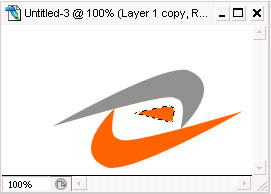
8. Take the Magic Wand Tool (W) again and select area inside the shapes. Then take the Polygonal Lasso Tool (L) and, holding down the Shift button, add the area that was colored in the previous step. Contract it at about 10px (Select>Modify>Contract...) and repeat step 6 but for the opposite shape.
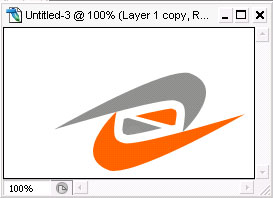
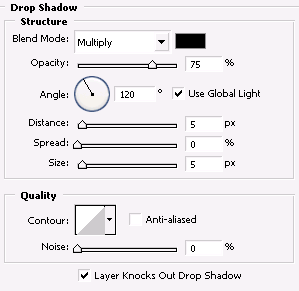
9. To spice up our logo let's add some effects. Press Add a layer style and choose Drop Shadow… Use the following settings:
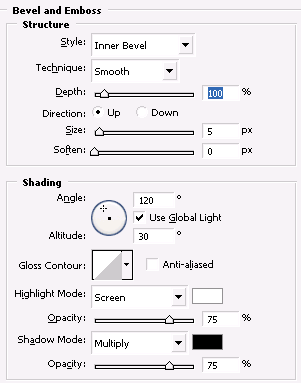
Then Bevel and Emboss with the following settings:
And we get the following result: