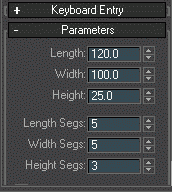
In this tutorial I will be showing a basic way of modelling that most people use. So lets get started by creating a box with the same values as shown in fig 1.a.
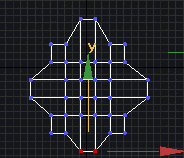
Now that we have made our box, you select it and right click-convert to edible poly for max 4 users,or convert to edible mesh for max 3.1 users. Now, select the vertex selection tool as shown in 1.b. Now select the vertices on the mesh that you want to move around; being careful not to overlap any as this will create mesh errors. Try moving them like in fig 2.a.
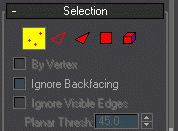
Now, basically you can do any shape that you want to do by moving the vertices around. Now try the polygon selection tool, which is the fourth from the left in fig 1.b. Now this will select the induvidual polygons in the mesh to be either extruded or bevelled. Fig 2.b shows the extrude tool.
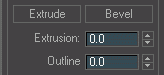
By holding your ctrl key you can select multiple polys at the same time like in fig 2.c.
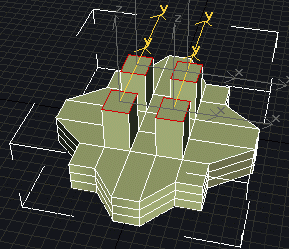
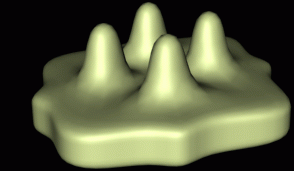
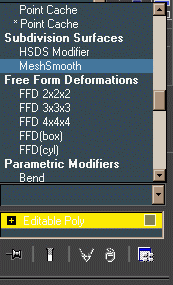
Follow so far? Now the model that I did here doesnt look like much, but as you can see it opens up infinite possibilities. So, now if you want a more organic or smoother model you can go to your modifier panel as in fig 3.1 and select the meshsmooth modifier.
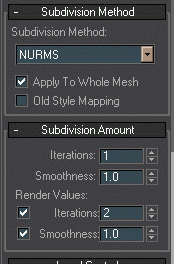
The menu rollout (shown if fig 3.b) will consist of several submenus, but for this tutorial we will enter the values as shown fig 3.b. Always remember to check your iterations and smoothness under subdivision amount as it will not render your meshsmooth without them.
This is what yours should look like: