
There are a couple of different ways to simulate etched glass. You may want to etch lettering into clear glass, or you may want to etch glass, leaving a transparent pattern.
The first thing to remember when creating "glass" in Photoshop is that we only see a transparent object by its relationship with its environment. There are highlights, the objects behind the glass may be slightly distorted, we might see reflections, the glass may have a slight tint or discoloration, or perhaps there are some smudges or finger prints. Those are the things that tell us we're looking at glass. Here are a couple of examples from the PhotoSpin.com archives.
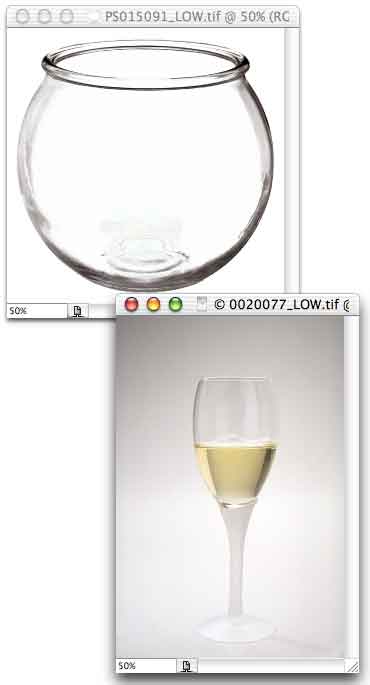
Note that the edges of glass objects are often visible. These edges can be simulated with Photoshop's Bevel/Emboss layer effect. Changing the highlight color and blending mode to match those of the shadow creates a uniform appearance around the "glass." Remember, too, that you can reduce the opacity of the layer's pixels without affecting the layer effect by using the Fill opacity slider in the Layers Palette. This technique can produce a simple frosted look to the glass.
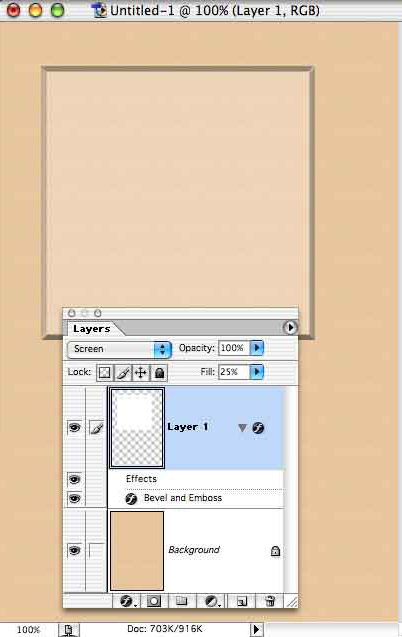
Photoshop's Type Mask tool enables you to make a selection in the shape of text in one easy step. The tool works much like Quick Mask mode, using a red overlay to indicate unselected areas of the image. (You can, of course, add a regular type layer.)
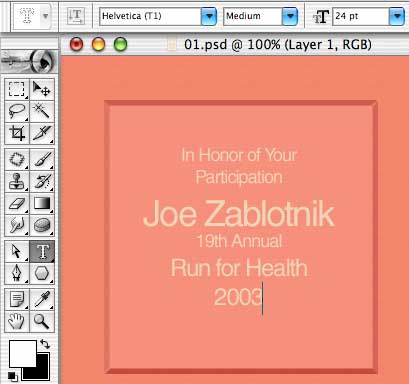
Should you simply delete the selection, the underlying layer's effects are applied. In this example, with disastrous results.
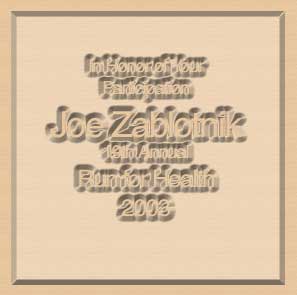
Adding another layer, filling the Type Mask tool's selection with gray and applying a slight bevel gives us a better simulation of an engraved slab of glass.
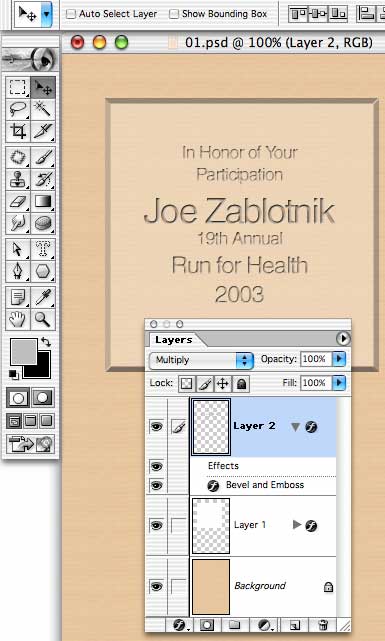
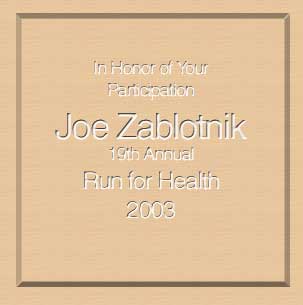
Further reducing the Fill opacity of the "glass" layer and changing the fill of the type (or the color of the type layer) changes the look, giving us a transparent slab and an engraved or etched look to the type.
 Pete
Bauer is the Help Desk Director for NAPP, as well
as a Contributing Writer for Photoshop User and Mac Design
magazines. His books include "Special Edition Using
Adobe Photoshop 7" (with Jeff Foster), "Special
Edition Using Adobe Illustrator 10," "Sams Teach
Yourself Adobe Illustrator 10 in 24 Hours" (with Mordy
Golding), and "Special Edition Using Adobe Illustrator
9." Pete writes documentation for a variety of computer
graphics related products, as well as testing software
for a number of companies. As a computer graphics efficiency
consultant, Pete specializes in customized training programs.
He is based in Columbus, Ohio, and can be contacted via
Pete
Bauer is the Help Desk Director for NAPP, as well
as a Contributing Writer for Photoshop User and Mac Design
magazines. His books include "Special Edition Using
Adobe Photoshop 7" (with Jeff Foster), "Special
Edition Using Adobe Illustrator 10," "Sams Teach
Yourself Adobe Illustrator 10 in 24 Hours" (with Mordy
Golding), and "Special Edition Using Adobe Illustrator
9." Pete writes documentation for a variety of computer
graphics related products, as well as testing software
for a number of companies. As a computer graphics efficiency
consultant, Pete specializes in customized training programs.
He is based in Columbus, Ohio, and can be contacted via
