

How would you like hundreds of free custom shapes to use in Photoshop? You don't even need to download them—they're likely already on your computer. In fact, you may have thousands of free custom shapes installed on your computer without even knowing it!
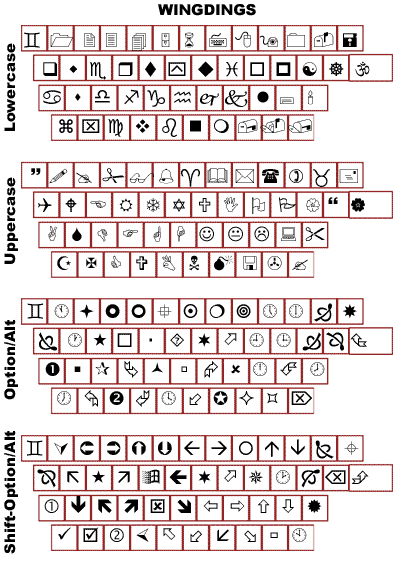
Symbols fonts. Some folks use ‘em, most folks ignore them. Generally speaking, if we don't use them, we don't bother taking them out of the Fonts folders either. Why don't we use them? Because it's bloody difficult to keep track of which key (or key combination) produces what symbol. If you've got a font management utility, such as Suitcase from Extensis, you can easily print out a reference sheet for each of your symbol fonts. (And remember that even "normal" fonts often produce symbols and special characters when you add in the Option/Alt key.)
Symbol fonts...custom shapes. Cool! Here's how to produce a custom shape from a symbol or, for that matter, any type character:
STEP 1
--Open an image of just about any size. (Remember that both fonts
and custom shapes are vector based and therefore the image
size and resolution is insignificant to the path itself.)
STEP 2
--Select the Type tool in the Toolbox. In the Options Bar, select
your symbol font. The font size should be compatible with the
size of your working document. (You want the character to fit
completely within the document, but it need not fill the canvas.)
--Type a single character. Confirm the text entry by clicking
the checkmark button at the right-end of the Options Bar, or
switch tools in the Toolbox, or on the keyboard press Command-Return
(Mac) or Control-Enter (Windows).
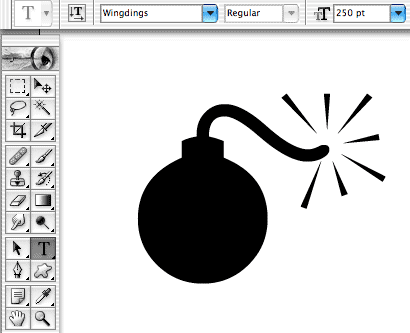
STEP 3
--Use the menu command Layer> Type> Convert to Shape.
--With the newly-created shape layer still active in the Layers
Palette, use the menu command Edit> Define Custom Shape.
--Give the new shape a name and click OK.
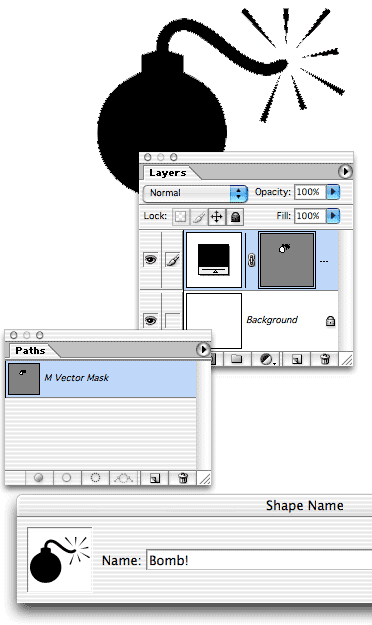
STEP 4 (Optional…but recommended. Highly.)
After you've created a number of new custom shapes, you'll probably
want to save them for future use. (While user-defined custom shapes appear
in the Custom Shapes palette from day to day, they're not really saved
until you record them separately.)
--Use the menu command Edit> Preset Manager.
--In the dialog box, Shift-click on the new shapes you've created.
--Click the Save Set button.
--Give the set a name and pick a location, then click OK.
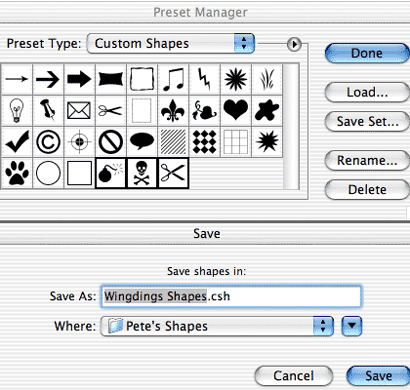
TIP: Save your custom shapes, as well as Actions, styles, swatches, etc., in a folder outside the Photoshop folder. That reduces the risk of inadvertently losing your collections should you ever need to (gasp!) re-install Photoshop.
Now, about those symbols and creating reference charts.... You've likely got the fonts Wingdings and Zapf Dingbats installed on your computer. Feel free to right-click (Windows) or Control-click (Mac) on the following two images and download them to your hard drive. You can print them at your leisure.
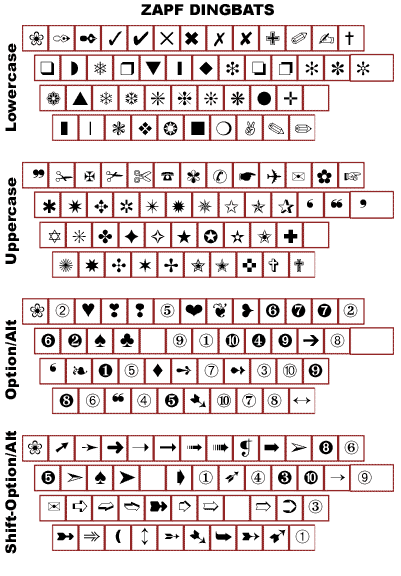
These "free custom shapes"? Consider them a gift. From me to you.
You're welcome.
 Pete
Bauer is the Help Desk Director for NAPP, as well
as a Contributing Writer for Photoshop User and Mac Design
magazines. His books include "Special Edition Using
Adobe Photoshop 7" (with Jeff Foster), "Special
Edition Using Adobe Illustrator 10," "Sams Teach
Yourself Adobe Illustrator 10 in 24 Hours" (with Mordy
Golding), and "Special Edition Using Adobe Illustrator
9." Pete writes documentation for a variety of computer
graphics related products, as well as testing software
for a number of companies. As a computer graphics efficiency
consultant, Pete specializes in customized training programs.
He is based in Columbus, Ohio, and can be contacted via
Pete
Bauer is the Help Desk Director for NAPP, as well
as a Contributing Writer for Photoshop User and Mac Design
magazines. His books include "Special Edition Using
Adobe Photoshop 7" (with Jeff Foster), "Special
Edition Using Adobe Illustrator 10," "Sams Teach
Yourself Adobe Illustrator 10 in 24 Hours" (with Mordy
Golding), and "Special Edition Using Adobe Illustrator
9." Pete writes documentation for a variety of computer
graphics related products, as well as testing software
for a number of companies. As a computer graphics efficiency
consultant, Pete specializes in customized training programs.
He is based in Columbus, Ohio, and can be contacted via
