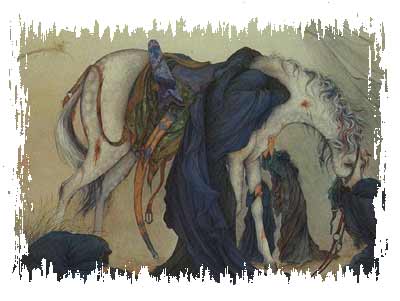
| What you'll start with: | What you'll end up with: |
 |
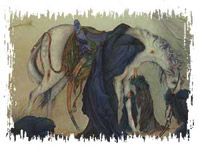 |
Sweet!
1. Load Photoshop and open your image. Press 'Shift', 'Ctrl' and 'J' to move your image to its own layer. Now use the Rectangular Marquee tool ('Shift' + 'M') to create a rectangle inside the image. Finally, press 'Q' and the outer borders of your selection will appear red (which means you're in Quick Mask Mode).
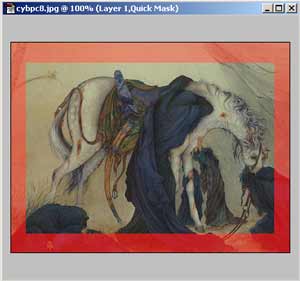
2. Go to Filter, Brush Strokes, Sprayed Strokes and enter a Stroke Length of 18, Spray Radius of 20 and Vertical for Stroke Direction. Press OK and then 'Q' once again on your keyboard to exit Quick Mask Mode.
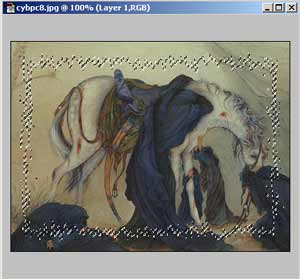
3. Press 'Ctrl', 'Shift' and 'I' to inverse your selection, and finally, press Backspace.