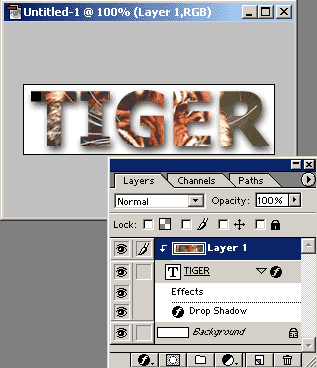
| What you'll start with: | What you'll end up with: |
 |
 |
Note that this method also works with objects.
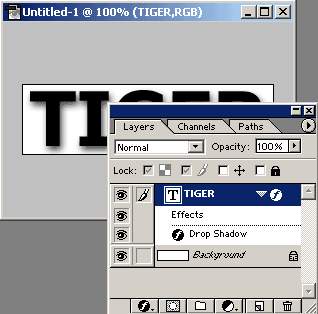
1. Load Photoshop and insert some text in a new document. It is best to choose a thick font (preferably bold). Press 'Ctrl' and 'Enter' to deselect. Now add a shadow to your text by going to Layer, Layer Style, Drop Shadow. Change the Size of the shadow to 8.
2. Load the image you'd like to place inside your text. Press 'V' to switch to the Move tool. Click and drag the image into your other document and its should automatically place itself on a separate layer.
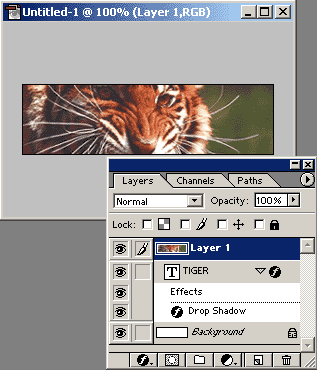
3. Finally, make sure the top layer (the one with the image) is selected and press 'Ctrl' and 'G' and your image will appear inside your text. The image can then freely be moved or repositioned.