1 | 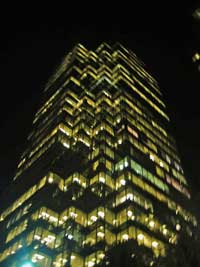 | Open the image for editing. |
2 | 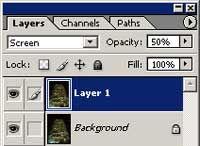 | Duplicate the current layer (Ctrl+J) , change the blending mode of the new layer to Screen and change the opacity to 50%. |
3 | 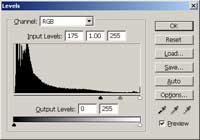 | With the top layer selected, use the Levels tool (Ctrl+L) to apply the following properties: Input Levels: 175, 1.00, 255 |
4 | 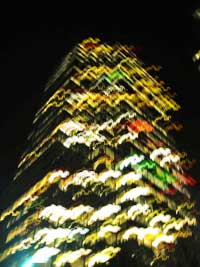 | Select the top layer and while holding down the Alt key, use the arrows button on your keyboard to control the direction of the blur. Rollover the image in this step to see the original image before this Photoshop technique was applied. |
Her
Long Exposure Blur
Added:Jul 07, 2005 Rating:

 Level: Beginner Software:
Photoshop
Level: Beginner Software:
Photoshop
Level: Beginner Software:
Photoshop
