 |
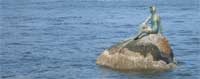
1. Open the image for editing. |
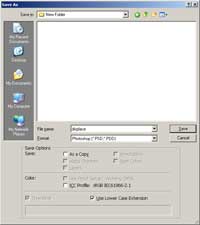 |
2. Save the image as (Shift+Ctrl+S) a Photoshop document (*.PSD). |
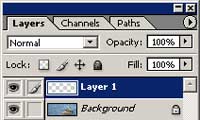 |
3. Create a new layer. |
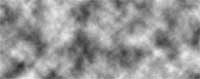 |
4. With the top layer selected, render a Clouds filter (Filter> Render> Clouds). |
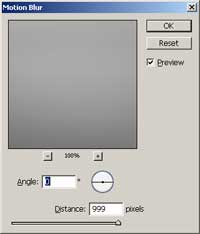 |
5. Use the Motion Blur filter (Filter> Blur> Motion Blur) to apply the following properties:
Angle: 0 Distance: 999 |
 |
6. Repeat the previous filter (Ctrl+F) ten times or more. |
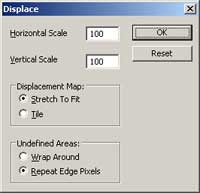 |
7. Use the Displace filter (Filter> Distort> Displace) to apply the following properties:
Horizontal Scale: 100 Vertical Scale: 100 Displacement Map: Stretch To Fit Undefined Areas: Repeat Edge Pixels |
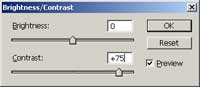 |
8. Increase the Contrast using the Brightness/Contrast tool (Image> Adjustments> Brightness/Contrast) to increase the depth of the metal texture. |
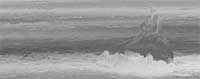 |
9. Rollover the image in this step to see the original image before this Photoshop technique was applied. |
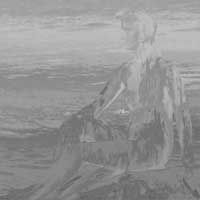 |
10. Here is a cropped area from a high resolution version of the image created with this tutorial. |
Her
Embossed Metal
Added:Jul 07, 2005 Rating:

 Level: Experienced Software:
Photoshop
Level: Experienced Software:
Photoshop
Level: Experienced Software:
Photoshop
