 |
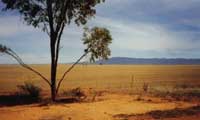
1. Open the image for editing. |
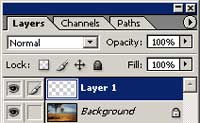 |
2. Create a new layer (Shift+Ctrl+N) |
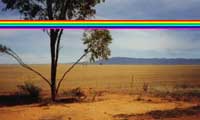 |
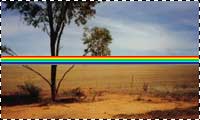
3. Use the Gradient Tool (G) to create a horizontal gradient with the following properties:
Gradient: Transparent Rainbow Style: Linear |
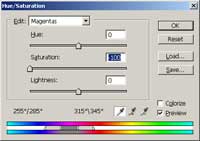 |
4. Use the Hue/Saturation tool (Ctrl+U) to apply the following properties:
Edit: Magenta Hue: 0 Saturation: -100 Lightness: 0 |
 |
5. Select the canvas (Ctrl+A) |
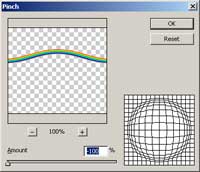 |
6. Apply a Pinch filter (Filter> Distort> Pinch) with an amount of -100%. |
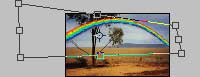 |
7. Use the Free Transform tool (Ctrl+T) to distort the rainbow into perspective. |
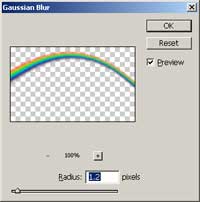 |
8. Apply a slight Gaussian Blur (Filter> Blur> Gaussian Blur). |
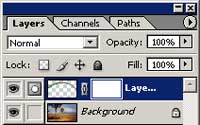 |
9. Add a layer mask (Layer> Add Layer Mask> Reveal All) to the current layer. |
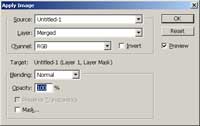 |
10. With the layer mask selected, use the Apply Image tool (Image> Apply Image) to apply the following properties:
Layer: Merged Channel: RGB Invert: Unchecked Blending: Normal Opacity: 100% |
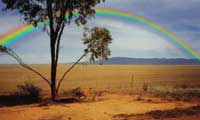 |
11. On the layer mask, use the eraser tool to erase the areobjects in front of the rainbow. |
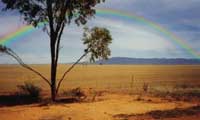 |
12. Reduce the opacity of the current layer. Rollover the image in this step to see the original image before this Photoshop technique was applied. |
Her
Realistic Rainbow
Added:Jul 08, 2005 Rating:


 Level: Experienced Software:
Photoshop
Level: Experienced Software:
Photoshop
Level: Experienced Software:
Photoshop
