 |
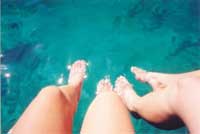
1. Open the image for editing. |
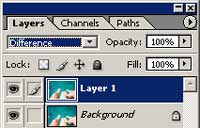 |
2. Duplicate the current layer and change the blending mode of the new layer to Difference. |
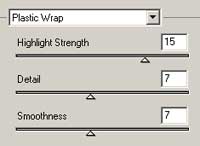 |
3. With the top layer selected, use the Plastic Wrap filter (Filter> Artistic> Plastic Wrap) to apply the following properties:
Highlight Strength: 15 Detail: 7 Smoothness: 7 |
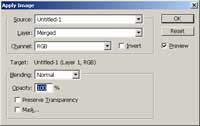 |
4. Use the Apply Image tool (Image> Apply Image) to apply the following properties:
Layer: Merged Channel: RGB Invert: Unchecked Blending: Normal Opacity: 100% |
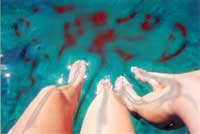 |
5. Desaturate the current layer (Ctrl+Shift+U) |
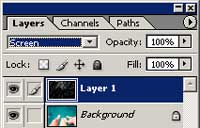 |
6. Change the blending mode of the current layer to Screen. |
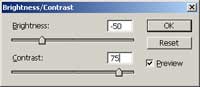 |
7. Use the Brightness/Contrast tool (Image> Adjustments> Brightness/Contrast) to apply the following properties:
Brightness: -50 Contrast: 75 |
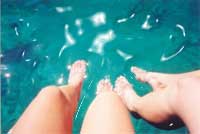 |
8. Use the eraser tool (E) to remove any unwanted reflections. |
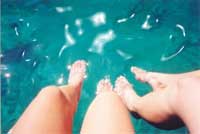 |
9. Rollover the image to view the image without this Photoshop technique applied. |
Her
Artificial Water Reflections
Added:Jul 08, 2005 Rating:


 Level: Experienced Software:
Photoshop
Level: Experienced Software:
Photoshop
Level: Experienced Software:
Photoshop
