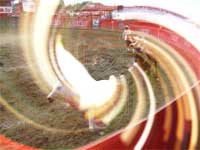
1 | 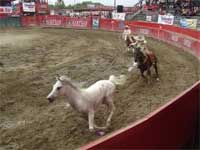 | Open the image for editing. |
2 | 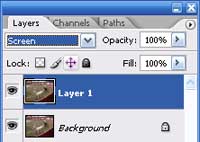 | Duplicate the current layer (Ctrl+J) and change the blending mode of the new layer to Screen. |
3 | 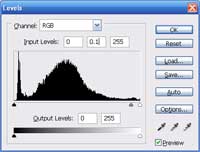 | With the top layer selected, use the Levels tool (Ctrl+L) to apply the following properties: Input Levels: 0, 0.1, 255 |
4 | 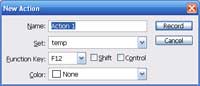 | In the Actions pallet (Window> Actions), create a new action. Specify a Function Key that will be used to play the action. |
5 | With the action recording, duplicate the current layer (Ctrl+J). | |
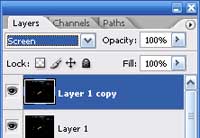
6 |  | Use the Transform tool (Ctrl+T) to apply the following properties: Width: 101% Height: 101% Angle: 1º If your image is a high resolution image, you may decrease the number of time the action will be played by applying these properties: Width: 102% Height: 102% Angle: 2º However, keep in mind that when you use higher values, the effect will be less smooth. |
7 | 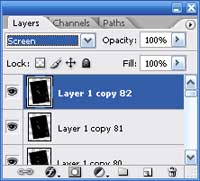 | Stop
the recording action and press the function key you've defined in step
4 repeatedly until you've achieved your desired effect. When pressing
the function key, ensure that the action is completed before you press
the function key again. |
8 | Rollover the image to see the image before this Photoshop technique applied. | |