1 | 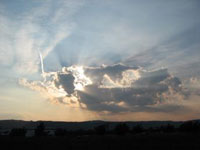 | Open the image for editing. |
2 | 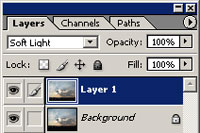 | Duplicate the current layer and change the blending mode of the new layer to Soft Light. |
3 | 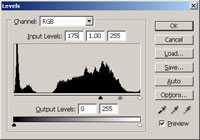 | With the top layer selected, use the Levels tool (Ctrl+L) to apply the following properties: Input Levels: 175, 1.00, 255 |
4 | 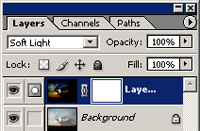 | Add a layer mask (Layer> Add Layer Mask> Reveal All) to the current layer. |
5 | With the layer mask selected, use the Apply Image tool (Image> Apply Image) to apply the following properties: Layer: Merged Channel: RGB Invert: Checked Blending: Multiply Opacity: 100% | |
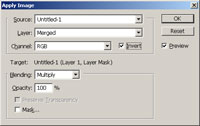
6 |  | On the layer mask, use the Eraser tool (E) to erase the high contrast effect in certain areas. |
7 | To increase the contrast further, change the blending mode to Overlay. Rollover the image in this step to see the original image before this Photoshop technique was applied. | |