

1 | 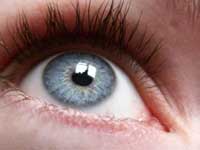 | Open the image for editing. |
2 | 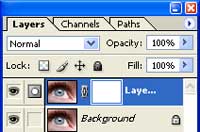 | Duplicate the current layer (Ctrl+J) and add a layer mask (Layer> Add Layer Mask> Reveal All). |
3 | 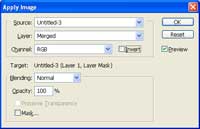 | With the layer mask selected, use the Apply Image tool (Image> Apply Image) to apply the following properties: Layer: Merged Channel: RGB Invert: Unchecked Blending: Normal Opacity: 100% |
4 | 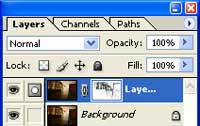 | Apply a Find Edges filter (Filter> Stylize> Find Edges) |
5 | 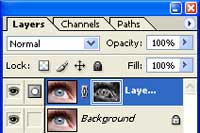 | Invert (Ctrl+I) the current layer mask. |
6 | 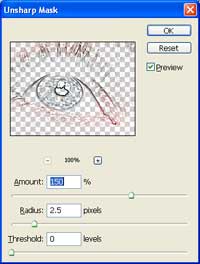 | Click on the thumbnail of the top layer to deselect the layer mask. With the top layer selected, use the Unsharp Mask filter (Filter> Sharpen> Unsharp Mask) to sharpen the image. |
7 | 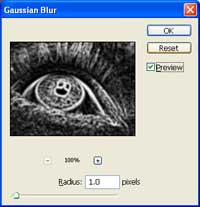 | To improve the image quality, select the layer mask in the Layers pallet and apply a slight Gaussian Blur (Filter> Blur> Gaussian Blur). |
8 | 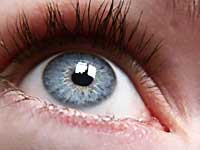 Sharpening edges only 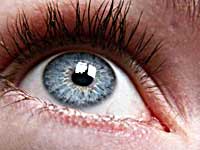 Sharpening without layer mask | Rollover the images to see the image used before this Photoshop technique was applied. |
