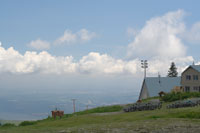
1 | 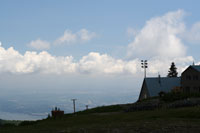 | Photograph two images, one with a lower exposure and one with a higher exposure. Ensure that the position of the photos are identical by placing the camera on a surface or tripod. Open (Ctrl+O) the image with a lower exposure. |
2 | 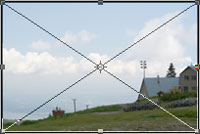 | Place the image with a higher exposure (File> Place). |
3 | 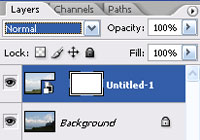 | With the top layer selected, add a layer mask (Layer> Add Layer Mask> Reveal All). |
4 | 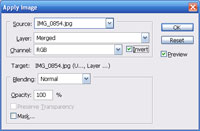 | With the layer mask selected, use the Apply Image tool (Image> Apply Image) to apply the following properties: Layer: Merged Channel: RGB Invert: Checked Blending: Normal Opacity: 100% |
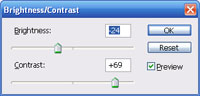
5 | With the layer mask selected, use the Brightness/Contrast tool (Image> Adjustments> Brightness/Contrast) to tweak the image. | |
6 | Rollover the image to see the image before this Photoshop technique applied. | |