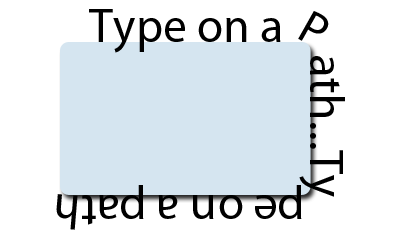
An anticipated feature to Photoshop and only available in Photoshop CS is the Text on a path Tool.
The Path can be either an open or closed path as well as a vector filled path.
Start a new document. Preset options of your choice.
Select either the Pen Tool (P)
 , the Line Tool, the FreeForm Pen Tool or any of the Shape Tools with 'Paths' Option Bar feature active.
Draw A Path (Open Path Example)
In this example lets draw a sine curve using the Pen Tool with Paths active.
See example of below for creating a simple sine curve.

Prepare Type Settings
Next Select the Type Tool (T)
 from the Toolbar (Also open the 'Window/Character' Palette and set your desired type parameters)
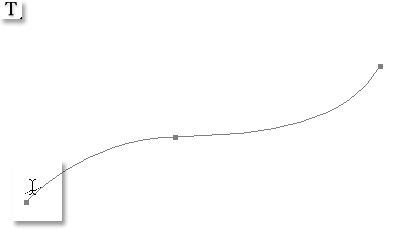
then place the cursor at the beginning of the open path as I have captured below.
from the Toolbar (Also open the 'Window/Character' Palette and set your desired type parameters)
then place the cursor at the beginning of the open path as I have captured below.
Notice the Cursor turns into an I-Beam, in anticipation for you to begin the Type on a Path.
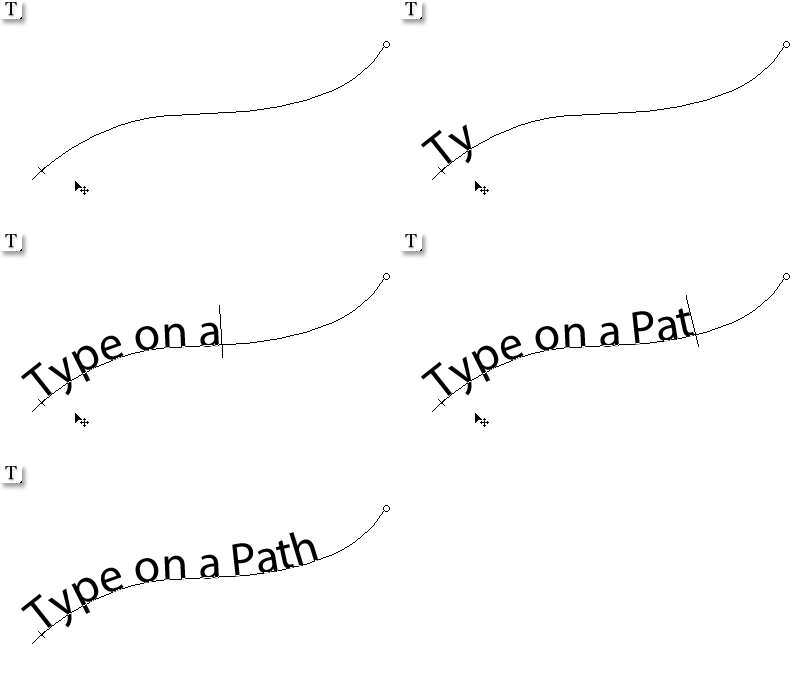
Enter Text
Click to begin and type on the path as I have animated below.
Move Text Along Path
To move the type along the path, first select the 'Path Selection Tool (P)'
 from the Toolbar and simply click and drag at the beginning
of type as I have animated below.
from the Toolbar and simply click and drag at the beginning
of type as I have animated below.
Notice the cursor now becomes a double sided arrow facing in the direction of your type.
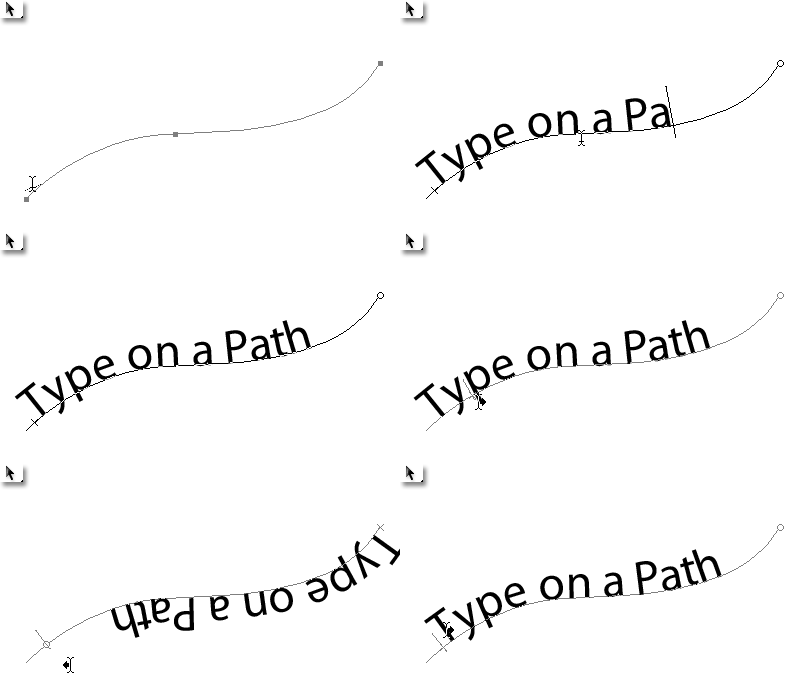
Re-Position Text along a Path
To drop the text to the bottom of the path, select the Path Selection Tool (P), then click and hold, then drag the I-beam below.
(Takes a little getting use to)
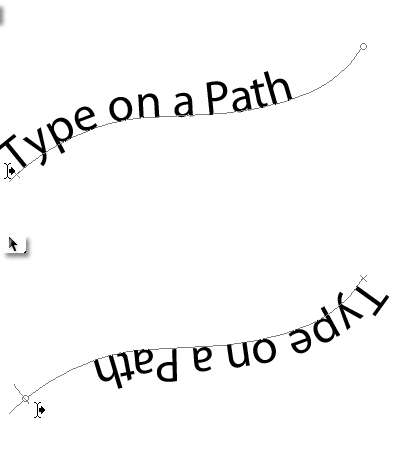
Other simple examples, include.
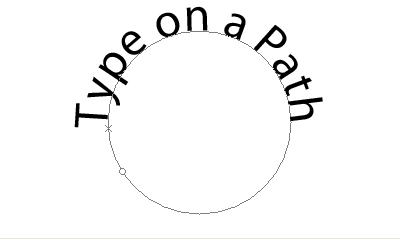
Type on a Closed Path.
This example uses the Elipse Tool (U) to create the circular path with Options Bar 'Paths' enabled.
Type on a Vector Shape.
This example uses the 'Rounded Rectangle Tool (U)' with Options Bar 'Shape Layers' active.