

Create high-tech multilevel pipes with liquid running inside.
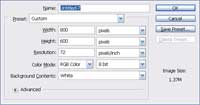 |
1. Create a new document with the following properties:
Width: 800 pixels Height: 600 pixels Resolution: 72 pixels/inch Color Mode: RGB Color 8 bit |
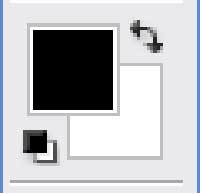 |
2. Ensure that the color pallet is the default black and white colors (D). |
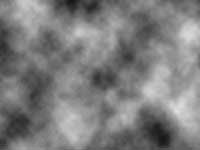 |
3. Apply a Clouds filter (Filter> Render> Clouds). |
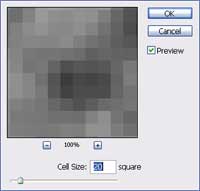 |
4. Add a Mosaic filter (Filter> Pixelate> Mosaic) with a cell size of 20 square. |
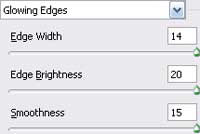 |
5. Apply a Glowing Edges filter (Filter> Stylize> Glowing Edges) with the following properties:
Edge Width: 14 Edge Brightness: 20 Smoothness: 15 |
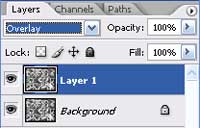 |
6. Duplicate the current layer (Ctrl+J) and change the blending mode of the new layer to Overlay. |
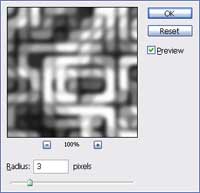 |
7. With the new layer selected, apply a Gaussian Blur filter (Filter> Blur> Gaussian Blur) with a Radius of 3 pixels. |
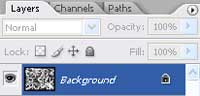 |
8. Merge Down (Ctrl+E). |
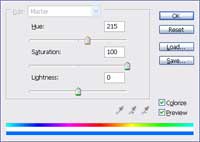 |
9. Use the Hue/Saturation tool (Ctrl+U) to colorize the image. These are the settings I used for this step:
Colorize: Checked Hue: 215 Saturaiton: 100 Lightness: 0 |
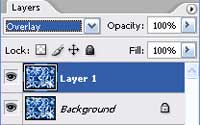 |
10. Duplicate the current layer (Ctrl+J) and change the blending mode of the new layer to Overlay. |
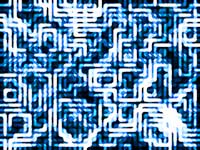 |
11. With the new layer selected, apply a Find Edges filter (Filter> Stylize> Find Edges). |
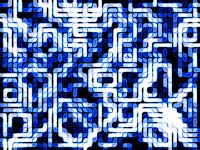 |
12. Invert the current layer (Ctrl+I). |
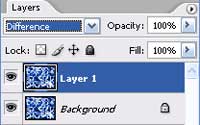 |
13. Merge Down (Ctrl+E), duplicate the layer (Ctrl+J) and change the blending mode of the top layer to Difference. |
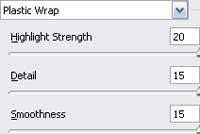 |
14. On the top layer, apply a Plastic Wrap filter (Filter> Artistic> Plastic Wrap) with the following properties:
Highlight Strength: 20 Detail: 15 Smoothness: 15 |
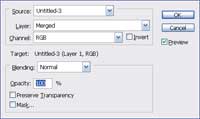 |
15. Use the Apply Image tool (Image> Apply Image) to apply the following properties:
Layer: Merged Channel: RGB Invert: Unchecked Blending: Normal Opacity: 100% |
