
This tutorial is republished with permission from PhotoshopTechniques Forums.
When you use a color profile different than sRGB, the color of your images do not look right when opened in a non color managed application, like a web browser.
A solution is to convert your images to sRGB before you use Save For Web.
But doing it manually can be tedious...
In Photoshop CS2, here comes the Scripts Event Manager to the rescue!
Its function: if a peculiar event happens, it will automatically run an action or a script.
Record a Convert To Profile Action First, given a document in any color profile but sRGB.
Go 'Window/Actions' to bring the Actions Palette to the foreground.
In the Actions palette, Select any one of the prefab Action Sets available.
I chose the 'Production' Set.

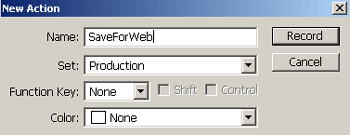
Next, click the New Action button
 At the next prompt, give the new action a unique name, for this example I used 'SaveForWeb'.
Then click the 'Record' command to begin recording.
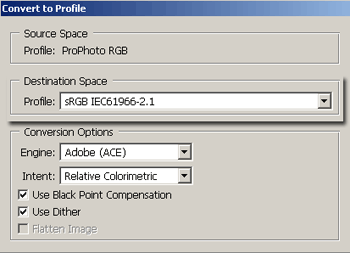
Go to the 'Edit/Convert to Profile' menu command, and, as captured below, select the correct sRGB profile from the list.
Then click OK to commit changes.
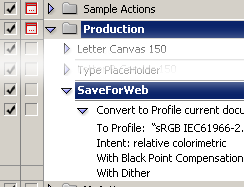
Go back to the Actions Palette and click the Stop Recording playback button.

Your new action is now complete and should reside in the Production set as I have captured below.
Trigger this Action to fire off on Save For the Web Next, go to 'File/Scripts/Scripts Events Manager'.
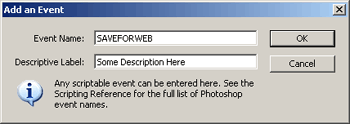
Check "Enable Events to Run Scripts/Actions". From the 'Photoshop Event' drop down list, choose "Add an Event...". In the Event Name type: "SAVEFORWEB" without quotes and spaces, in all caps.
Note: Descriptive Label is required!
Then click OK to commit changes.
Click on the radio button in front of "Action", and select the action that you created above for converting to sRGB.
Note: The first drop down list corresponds to the available 'Action Sets' loaded via the Actions Palette, while the second list corresponds to the Actions available in that Set.
In my example, the action required is called 'SaveForWeb', located in the default 'Production' Action Set, as captured below.
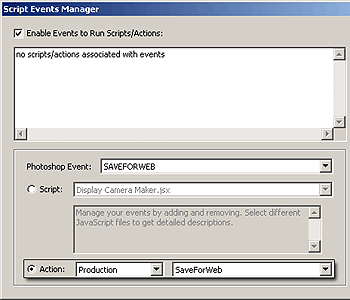
Finally, click on 'Add' to load the new Event to the Manager list (indicated by the arrow), then 'Done' to commit changes.
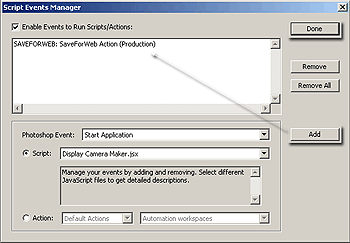
Now, each time you use 'File/Save for Web' menu command, your images will automatically be converted to the correct profile!
Note: If your Save For Web routine requires your active document Color Profile, then turn OFF/Disable the Events Manager before applying the Save For Web command.
For more information regarding a list of Custom 'Photoshop Events' consult the following.
Photoshop CS2 Scripting Documentations can be viewed here. See the Photoshop CS2 Scripting Guide for more information on scriptable events.
