1. Begin with a new file, 700x150, and with a transparent background. Then take the Paint Bucket Tool and fill the layer with any color. Now right click on layer 1, choose Blending Options and apply these settings.
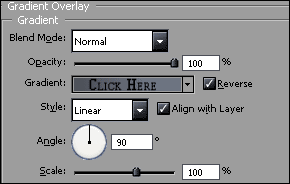
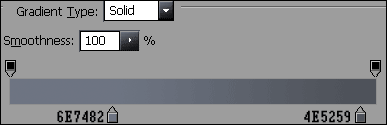
Now should you have something like this.

2. Now press Ctrl and click on layer 1 to get a selection, then create a new layer, and fill the layer with white. Now go to Edit>Free Transform or press Ctrl+T, now drag the bottom part half way up, and then change the Opacity to 20%.

3. Create a new layer. Then take the Rectangular Marquee Tool and create a shape similar to the one below, fill the shape with any color.

4. Now right click layer 3, choose Blending Options and apply these settings.
>
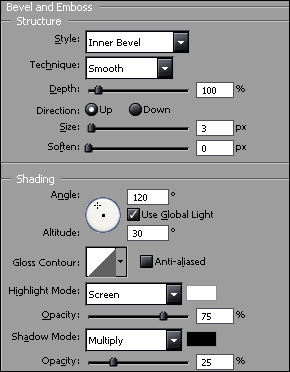
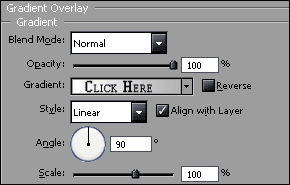
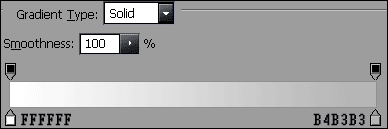
5. Then duplicate layer 3, to do that just right click on the layer and choose Duplicate Layer, then use the Move Tool to move the layer to the bottom.
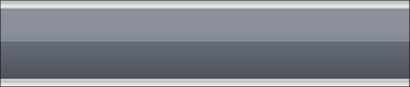
6. Create a new layer. Then take Rounded Rectangle Tool and create a shape similar to the one below.

7. Now use the same Blending Options as above, but add this.
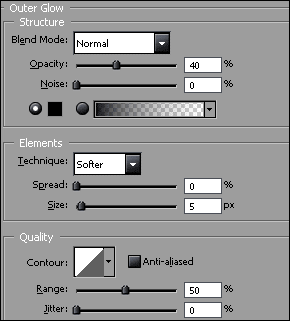
And now should you have something like this.

8. Create a new layer. Then take the Rectangular Marquee Tool and create a shape similar to the one below, fill the shape with any color.
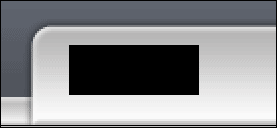
9. Now right click on layer 5, choose Blending Options and apply these settings.
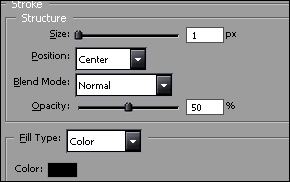
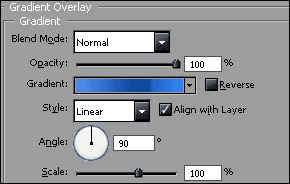
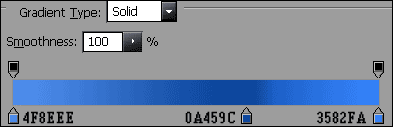
And now should you have something like this.

Then repeat step 9 a few times, and add some text to it. And that's it you're done! This is what I came up with.