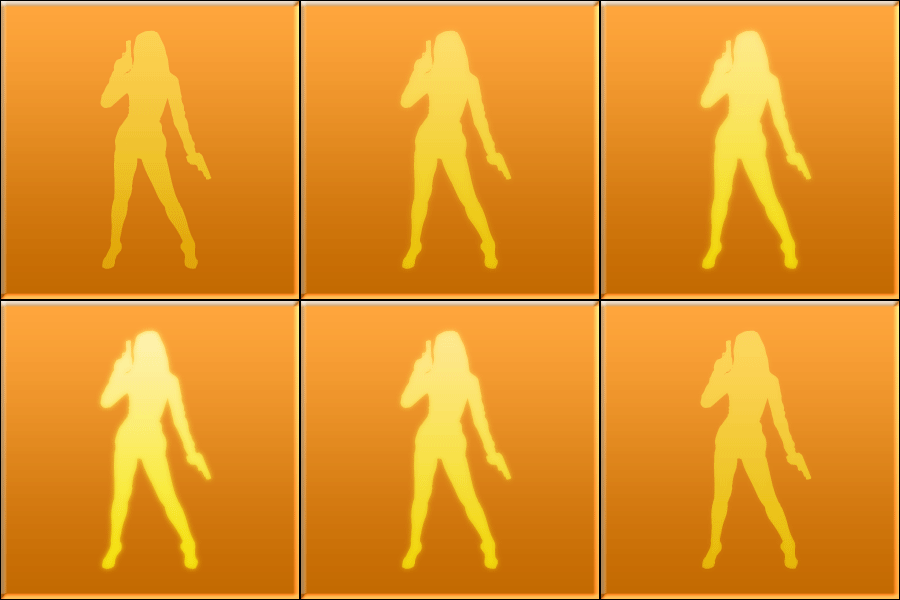
Create an animation just like the admin-sigs in the forums...
Create a document with a desired background and create a new layer with a random object or text on it
Duplicate the layer 2 times, then go to FILTER>BLUR>GAUSSIAN BLUR and blur the first copy a little
Then blur the second copy some more (Note: this really depends on the image or the text, so i can't really give you numbers)
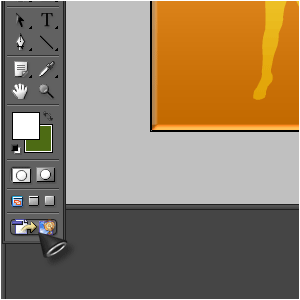
Hop on over to Image-Ready by clicking this button
When in IR, hide the 2 copies and just show the original layer
On the animation-palette, press the NewLayer-button
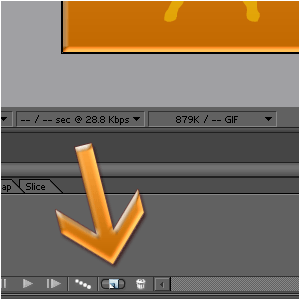
Then let one of the copies be shown above the original and press the tween-button and set it to 7 (Note: tick all the boxes)
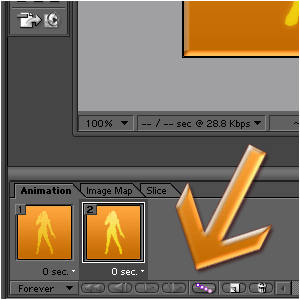
Do the same thing with the other layer
Create a new layer and show the last layer, tween in by 7 and after that create a layer with just the original on it and tween it with 7 again
When you paid attention to what I said and ignored all the stuff in IR you didn't needed, the result should look like this: