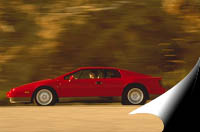
Here is a effect you've see a bunch. Whenever you've seen it, it was probably created with a plugin. Here we do it without one.
- Start out with the image you wish to 'turn'
- Next, create a duplicate layer by choosing 'Layer/Duplicate Layer'. Name it whatever you wish. Switch back to the background layer and 'Edit/Fill' or Alt+Del to fill with whatever color you want to be the background.
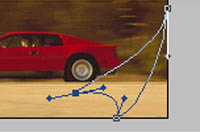
- Using the Pen tool, make a path similar to the one pictured below.
- Open the paths palette, and convert the path into a selection by ctrl+click on the path name.
- Switch back to the layers palette and create a new blank layer.
- Choose the gradient tool and create a white to black gradient, or whatever colors work for your use.
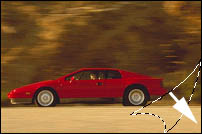
- Drag the gradient in the direction of the arrow, you may have to try it a few times to get the angle just how it you need it.
- After you have your gradient how you want it, switch back to the layer containing your images and deselect your selection by hitting ctrl+d.
- All that's left to do now is to erase the corner off the image and there you go.