

The aim of the tutorial is to learn how to create an input box and get buttons to change a movie clip based on what the user has typed into the input box. The reset button changes the movie clip to the original default position irrespective of the input box.
Step one: Creating a movie clip
First we must create a movie clip. I choose to draw a frog.
- Go to Insert > New Symbol
- Type the name: frog MC (or anything appropriate).
- Select Movie Clip as the behavior.
- Click OK.
- Draw a frog or whatever takes your fancy.
- When you have finished your drawing go to Edit > Select All. This will select all the parts of the frog.
- Go to > Modify Group.
- Go to Window > Properties to open the Property panel.
- Type 0 for the x and y values. Press Enter to active the values.
This needs to be done as the action script measures the frog from the top left corner and if you do not align it in this way it will be difficult to set the action script in the rest button. The frog will not go back to the correct place on stage. - Click on the Scene 1 Tab
 . You
will return to the main stage.
. You
will return to the main stage. - Open the Library by pressing F11 on the keyboard.
- Drag your frog onto the stage.
- Open the Property panel (Ctrl + F3).
- With the frog selected type the name frogie in the instance name box of the property
panel. When you have finished typing press Enter to tell Flash that you have finished tying the instance
name.
Note: Even if you have typed a name in the instance box you may find that the name is not retained if you do not press Enter.
Note: ActionScript is not like this and you do not need to press Enter when using the Action panel.
Note: ActionScript is case sensitive. If you type frogie as the instance name, you will need to refer to it in the actionscript as frogie. If you type Frogie Flash will not find the movie clip.
Step two: Creating properties for the input box
- With the text tool
 selected
drag out a small text box on the main stage.
selected
drag out a small text box on the main stage. - Inside the text box type tree zeros: 000
You may need to resize the text box.
In the Property panel:
- Select input text.

- Select the font, font style, size and colour.

- Select: Right Justify.

- If your Property panel is in collapsed view, click on the down arrow
 in
the bottom right corner of the Property panel to expand the panel. If you have an up arrow
in
the bottom right corner of the Property panel to expand the panel. If you have an up arrow  your
panel is already expanded.
your
panel is already expanded.
- For line type select: Single Line.
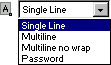
- Input text should be Selectable.
 You
do not need to switch it on as input text is always selectable.
You
do not need to switch it on as input text is always selectable.
- Select: Show Borders Around Text.

- For Variable name type: textbox

Note: There is no instance name only a variable name.
- For Maximum Characters type: 3

- Click on the Character button
 and
select Only > Numerals.
and
select Only > Numerals.

Step three: Setting up the buttons on stage
- Create a button and drag it onto the main stage or get one from the Common Library (Window > Common
Libraries > Buttons). You will need eight buttons in total. Seven for the frog settings
and one for the reset.
Note: If you take a button from the Library avoid Component buttons as they work differently.
- You will need to align the buttons on stage. To do this you need to open the Align panel: Window > Align
- In the Align panel make sure the Align to Stage button
 not
selected. It is gray when de-selected, white when selected.
not
selected. It is gray when de-selected, white when selected. - Select 7 of the buttons (not the reset button).
- In the Align panel click on the Align left edge button

- In the Align panel click on the Space evenly vertically button:

Your buttons should now be in a straight line and evenly spaced. - Select the text tool:
- In the Property panel select: static text
- In the Property panel deselect: Show Border Around Text
- Click on the stage to create an insertion point for the text tool on stage.
- Type the following Labels next to the buttons (each button label should have it's own text box):
Width: In Pixels
Height: In Pixels
Alpha: 0 - 100
Rotation: 0 - 360°
Visibility: 0 or 1
X Position: horizontal axis
Y Position: Vertical axis
Rest - Place the labels next to the buttons (the Align panel maybe helpful in this).
Note: To type the degree ° symbol hold the Alt key down and type 0186 on the number pad. For other symbol codes open the program Character Map (Windows). Go to Start > Programs > Accessories > System Tools. If it is not installed on your PC you can install it from the Windows CD (in your Control Panel go to Add/Remove Programs > Widows Setup > System Tools > Details and select Character Map - may vary in some operating systems).
Otherwise: Open Word and go to Insert > Symbol and paste the symbol into Flash.
Step four: Giving the setProperty buttons actions
Width Button
- Right click on the Width button and select: Actions
- Select Normal Mode from the View Options button
 .
. - Click on the Plus button:

- Select: Actions > Movie Clip Control > setProperty
- In the Options above the action script go to properties and select width from the drop down arrow.
- In the options go to Target and type: _root.frogie
- In the options go to Value and type: _root.textbox
- In the options go to Value and select expression in the tick box on the right.
Your action script should look like this:
on (release) {
setProperty("_root.frogie", _width, _root.textbox);
}
Note: The "frogie" has quotation marks because it is an instance name, textbox does not because it is not an instance but a variable name. This is controlled selecting/deselecting the expression tick box in the action options.
- Save and test your movie to see if it works.
Other setProperty Buttons
- Do as above but select the appropriate property according to which button it is.
Step five: Giving the Reset buttons actions
Before we can do this you need to know the width, height, x and y value of your frog. If you select the frog on stage you can then look in the Property panel for these values. Write them down on a piece of paper.
Note: The order or the reset is important. For example if you reset the width then reset the rotation the width will be incorrect. That is: the width of a rotated object is different to an object that is not rotated. For this reason we will reset the rotation first.
Reset Button: Rotation Properties
- Right click on the reset button and select Actions.
- Select Normal Mode from the View Options button .
- Click on the Plus button:
- Select: Actions > Movie Clip Control > setProperty
- In the Options above the action script go to properties and select rotation from the drop down arrow.
- In the options go to Target and type: _root.frogie
- In the options go to Value and type: 0
- In the options go to Value and select expression in the tick box on the right.
Reset Button: Width Properties
Now that the movie clip is rotated to 0 we are to add the line of code that will reset the width properties.
- Click on the Plus button:
- Select: Actions > Movie Clip Control > setProperty
- In the Options above the action script go to properties and select width from the drop down arrow.
- In the options go to Target and type: _root.frogie
- In the options go to Value and type: the width of your frog.
- In the options go to Value and select expression in the tick box on the right.
Reset Button: Other Properties
Repeat this for each of the individual properties.
Reset Button: Textbox Properties
- Click on the Plus button.
- Select: Actions > Variables > set variable (remember the text box is a variable).
- In the options go to Variable and type: _root.textbox
- In the options go to Value and type: 000
This resets the number in the text box to: 000
Your script should look similar to this:
on (release) {
setProperty("_root.frogie", _rotation, 0);
setProperty("_root.frogie", _width, 98.4);
setProperty("_root.frogie", _height, 41.2);
setProperty("_root.frogie", _alpha, 100);
setProperty("_root.frogie", _visible, 1);
setProperty("_root.frogie", _x, 64.8);
setProperty("_root.frogie", _y, 68.6);
_root.textbox = "000";
}
The width, height, x and y values will be different in your script as it will be dependant on the position and size of your frog. The alpha (transparency) rotation and visibility will be the same.
Save and test you movie as it should now be finished. Enjoy your new skill.
