

The aim of the tutorial is to learn how to create a Flash movie that the user can draw with whist online. At the bottom of the page you will see an example of a complete Paint program created with this same script.
Step one: Document setup
- Create a new Flash Movie
- Go to: Modify > Document and set the frame rate at: 30 fps
If you do not do this the drawing may be a jagged as the default of 12 frames per second is too slow to create a smooth line. - You need a button on stage. Go to: Window > Common Libraries > Buttons
Scroll down until you can see: Ovals
Double click to open the folder.
Drag the Blue button onto stage.
The document is now ready.
Step two: ActionScript - Timeline
You need to place the following ActionScript in the Timeline. I will explain what the ActionScript means later.
- Right click (Mac: Ctrl click) in frame 1 on the timeline and select: Actions
- Select Expert Mode from the View Options button
 .
. - Type the following Actionscript into Actions Box:
_root.createEmptyMovieClip("myLine", 0);
_root.onMouseDown = function() {
myLine.moveTo(_xmouse, _ymouse);
myLine.lineStyle(2, 0xff0000, 100);
_root.onMouseMove = function() {
myLine.lineTo(_xmouse, _ymouse);
}
}
_root.onMouseUp = function() {
_root.onMouseMove = noLine;
}
Note: The case of key words in ActionScript is important so you must make sure the capitals / lower case is correct.
- You need to test the movie. Go to: Control > Test Movie
You should be able to draw when the mouse is held down. If you cannot you have made a typing error. Go back and check it.
Note: The Blue Delete button will not work yet.
Step three: ActionScript - Button
- Right click on the blue button.
- Select Expert Mode from the View Options button
.
- Type (or copy and paste) the following Actionscript into Actions Box:
on (release) {
myLine.clear();
}
- Go to: Control> Test Movie
You should be able to draw and use your button.
Your Movie is finished.
Explanation of ActionScript - Timeline
_root.createEmptyMovieClip("myLine", 0);
This creates a blank Movie Clip.
_root.onMouseDown = function() {
A function which is activated every time you click the mouse.
myLine.moveTo(_xmouse, _ymouse);
Makes the line start at the current location of the mouse.
myLine.lineStyle(2, 0xff0000, 100);
Creates the line style:
2 is the line width
0xff0000 is the hexadecimal colour.
100 is the Alpha. 0 is completely transparent and 100 is a solid colour.
Note: For a full explanation of hexadecimal colours and a colour chart: click here
_root.onMouseMove = function() {
A function within a function created when the first function is active and then the mouse moves.
myLine.lineTo(_xmouse, _ymouse);
When the mouse moves the line follows it's position.
}
Closes the Mouse Move function
}
Closes the Mouse Down function
_root.onMouseUp = function() {
New function activated on mouse up.
_root.onMouseMove = noLine;
Clears the line
}
Closes the Mouse Up function
Explanation of ActionScript - Button
on (release) {
On release of the mouse button.
myLine.clear();
Delete myLine
}
End of script.
Paint program created with this same ActionScript
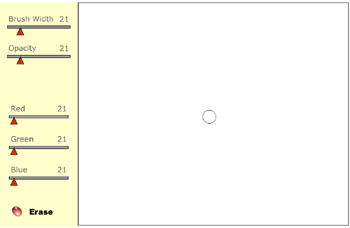
This move has variables in the line:
myLine.lineStyle(myWidth, myColour, myAlpha);
These variables are controlled by the sliders which enables the user to change the paint settings as they draw.
